Photold
Old Photo to New Photo: Restoration Prompts That Keep the Face
By the Photold team · · 7 min read
Photold is our own app, so we are not neutral here. What we say about other apps comes from their own public pages, checked on the date shown.
The prompts that work best for turning an old photo into a clean, new-looking one in a chat assistant do two things: they name the damage you can see, and they list what must not change, starting with the faces. A short prompt like "Restore this photo. Remove the scratches and dust. Keep every face, expression and the framing exactly the same." gets you further than a long string of quality words such as "4K, ultra detailed, masterpiece".
Below you will find a three-part template, copy-ready prompts for the common jobs and a way to check the result. Google's own example for photo restoration in Gemini ends with "Keep his face the same", and that line does more work than anything else in the prompt. If you would rather not write prompts at all, Photold has these instructions built into each tool.
Before you start: what you need
- A flat, sharp copy of the photo. A crooked phone picture with glare gives the AI less to work with. Our guide to scanning old photos with your phone takes a few minutes and pays off in every step after it.
- An account that can edit images. In Gemini you need to be signed in, and Google says editing images is not available to users under 18.
- The untouched scan, saved separately. Every edit is a new picture. Keep the original so you can always start again.
- One job per prompt. Repair first, then colorize in a second step if you want color. Asking for everything at once makes it harder to tell what went wrong.
The template: fix, keep, return
Every good restoration prompt has the same three parts. Write them as plain sentences; Google notes that Gemini works with simple, conversational instructions rather than long, technical prompts.
| Part | What it says | Example |
|---|---|---|
| Fix | The damage you can actually see | "Remove the scratches, the dust spots and the crease across the top left corner." |
| Keep | Everything that must stay the same | "Keep every face, expression, hairstyle and skin tone exactly as it is. Do not crop, add or remove anything." |
| Return | What the finished photo should look like | "Return the same photo in black and white, with its natural film grain." |
The Keep part matters most. An image model redraws the picture rather than patching it, and without a limit it can tidy a face on the way: smoother skin, bigger eyes, a slimmer jaw, a new smile. Our explainer on whether AI restoration changes faces shows the signs to look for.
Copy-ready prompts for common damage
Scratches, dust and creases
"Repair this old photo. Remove the scratches, dust, hairs and crease lines. Keep every face, expression, pose and the framing exactly the same. Keep it black and white. Do not sharpen or smooth the skin."
Faded or yellowed print
"Correct the yellow cast and bring back the contrast that has faded, especially in the faces and dark clothing. Keep the photo black and white [or: keep the sepia tone]. Do not change any face, add detail or crop."
Tears and missing corners
"Repair the tear running through this photo and fill the missing corner with plain background that matches the rest. Do not invent new objects or people. Keep every face exactly as it is."
A soft or slightly blurry photo
"Make this photo a little sharper and reduce the noise, without inventing new detail. Keep each face looking like the same person, with the same expression. Avoid an over-sharpened or plastic look." Blur from a shaking camera can only be improved so far; our guide to fixing blurry old photos explains why.
Group photos
Add one line to any prompt above: "Keep exactly the same number of people, in the same positions." In a crowded photo, small faces at the back are the ones most likely to change, so check them closely.
Rather skip the prompt writing? Photold's Restore tool already tells the AI what to keep.Try Photold
A colorizing prompt that respects skin tone
Google's example asks for "bright, vivid color". For an old family photo, muted color usually looks more like real film of the period. Try this as a second step, after the repair:
"Colorize this black and white photo with natural, slightly muted colors that fit the era. Judge each person's skin tone from their features and the tonal range of the photo, and do not lighten anyone's skin. Keep every face, expression and detail unchanged."
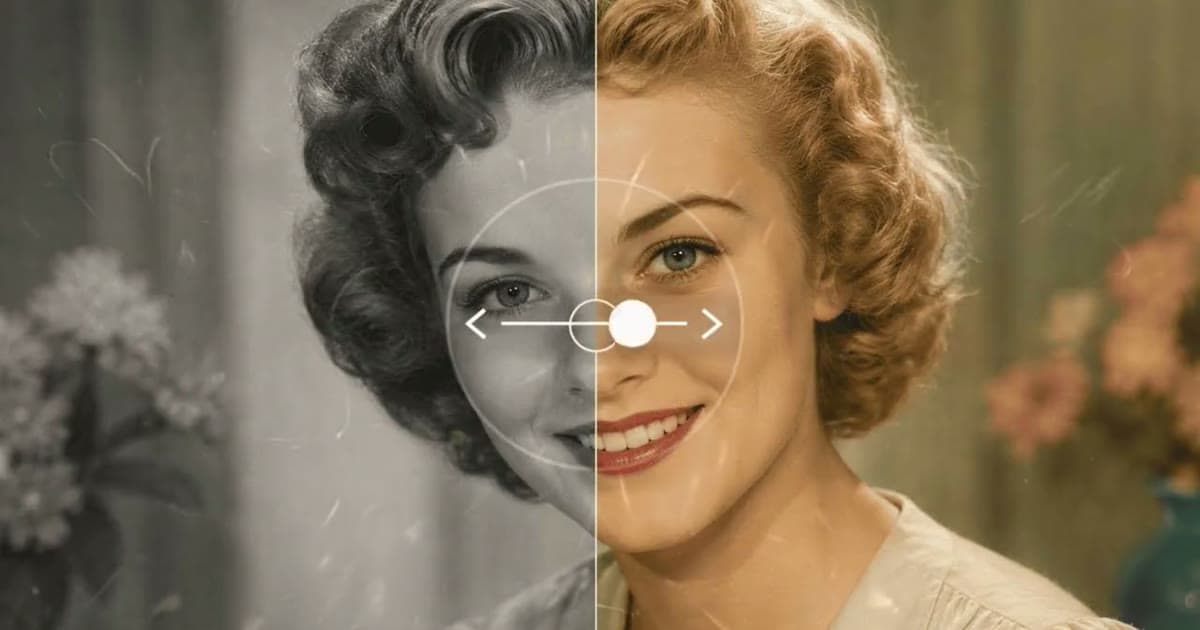
The skin line is there for a reason: early film recorded darker skin and reds darker than they were, so a model that reads brightness alone can get complexion wrong. Colors from any tool are a plausible guess, not a record. Our guides on colorizing black and white photos and how accurate colorized photos are go further.
Check the result before you keep it
- Put the original and the result side by side at the same size.
- Cover every face but one and compare it feature by feature: eyes, nose, mouth, ears, hairline, any marks. Then the next face.
- Count people, hands and fingers. Look at buttons, jewelry and any writing, which models like to redraw.
- Check that nobody's skin looks paler or darker than in the original.
- Show it to someone who knew the people in it. They are the best judge of a likeness.
If a face has drifted, start a fresh chat with the original scan and a stricter Keep line, rather than asking for corrections in the same chat. Each new edit is another chance for small changes to add up.
When a prompt is not the right tool
A prompt is a quick way to fix a photo you want to share on a phone. It is a weaker fit in a few situations:
- Printing large. Google says Gemini images download at 1K without a Google AI plan and 2K with one. At 300 dpi, an image about 1,000 pixels wide prints only about 8.5 cm / 3.4 in across. Our guide to enhancing old photos for printing covers sizes.
- Heavy damage. When most of a face is missing, any AI is guessing. A professional restorer, working with you, is worth considering; see AI vs Photoshop vs professional restoration.
- Privacy. Whatever you upload goes to that provider under its terms. Read what happens to uploaded family photos before you send a whole album.
- Many photos. Writing and checking prompts photo by photo gets slow. A tool with fixed instructions, such as Photold, gives every photo the same treatment.
Frequently asked questions
What is the best prompt to restore an old photo?
One that names the damage and lists what to keep, for example: "Restore this photo. Remove the scratches and dust. Keep every face, expression and the framing exactly the same." Short and specific beats long and vague.
Why does Gemini change faces when it restores a photo?
An image model redraws the picture, and without a limit it may tidy up a face. Say plainly that every face must stay the same, and compare each face with the original before you keep the result.
Do these prompts work in ChatGPT?
They are plain language and not tied to one assistant, so you can paste them into any assistant that edits photos. Check that assistant's own help pages for its limits.
Can I restore old photos in Gemini for free?
Google lets signed-in adults edit images in the Gemini app, with daily limits and higher download resolution on a paid Google AI plan. What is included can change, so check Google's help page for your country.