Photold
Does AI Photo Restoration Change Faces?
By the Photold team · · 6 min read
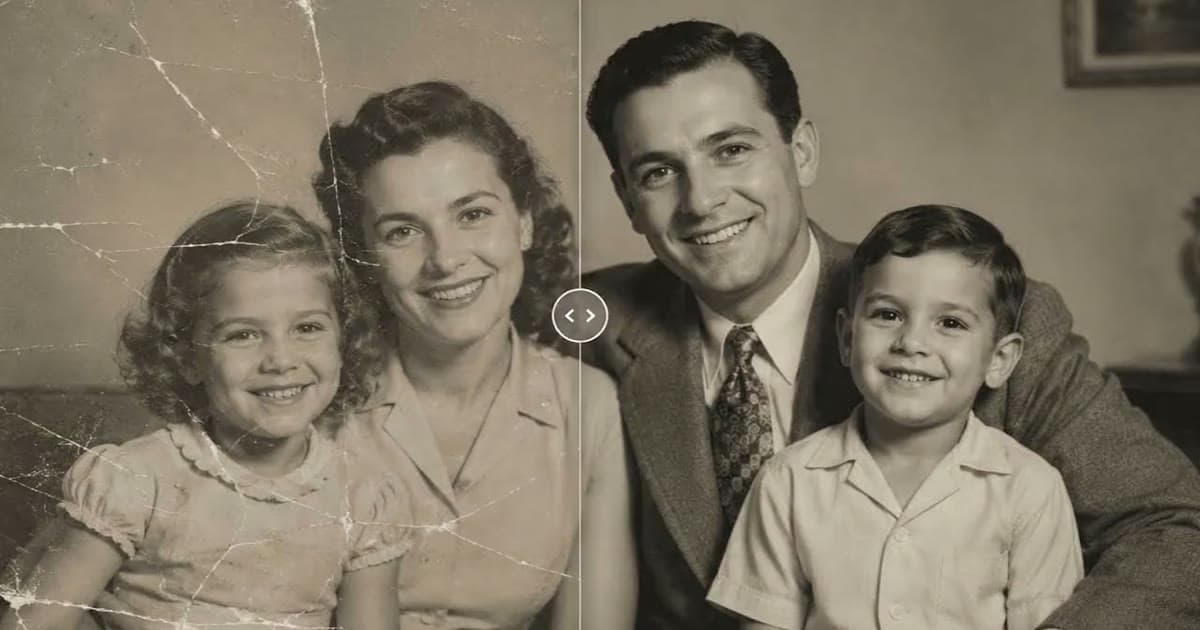
Yes, it can. When a face in an old photo holds too little information, an AI model fills the gap with likely detail. The result can look sharp and lovely and still not quite be your grandmother.
The risk is not evenly spread. A large, clear portrait with scratches across the background is unlikely to give you much trouble. A tiny face in a group shot, or a crack running through an eye, is where changes happen. Here is why, what to look for, and what lowers the risk.
Why AI restoration changes faces
On a small print, a face can be the size of your fingernail. There may be only a few specks of tone where an eyelid should be. The shape of that eye is not in the file, so no tool can read it back. What a model can do is draw a likely eye, based on what it has learned from other images. Likely is not the same as hers.
The risk goes up with these four things.
- Very small faces, such as those in the back row of a group photo.
- Damage across features: a tear, stain or crease through the eyes or mouth.
- A soft or compressed source, such as a chat app copy of a copy.
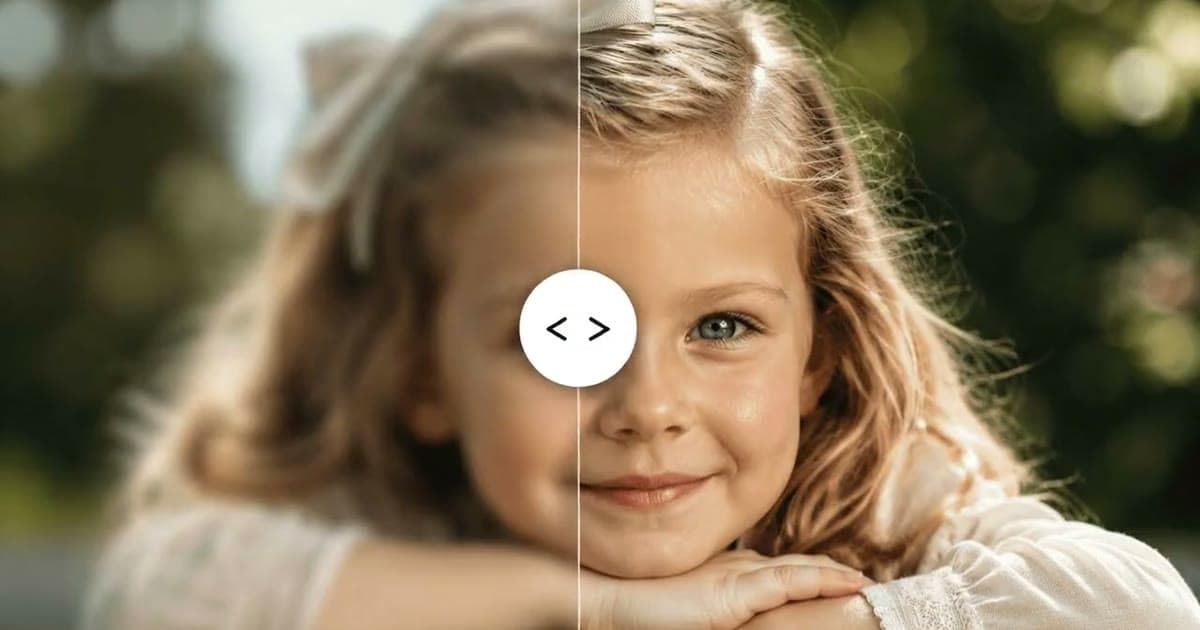
- Strong sharpening, which asks the model for detail the photo never had.
The signs to look for
Put the scan and the result side by side at the same size, and zoom in on one face at a time. Check each feature on its own, because your eye forgives a lot when it takes in the whole picture.
| Sign | What to look for | Why it happens |
|---|---|---|
| Teeth appearing | A closed or blurry mouth now shows a neat row of teeth | A dark smudge gets read as a smile |
| Eye shape | The eyelids, the angle of the eyes or the direction of the gaze have shifted | On a small print, eyes are drawn more than they are read |
| Smoothing | Wrinkles, freckles and stubble are gone, and the skin looks waxy | Fine texture can look like noise, so it gets cleaned away |
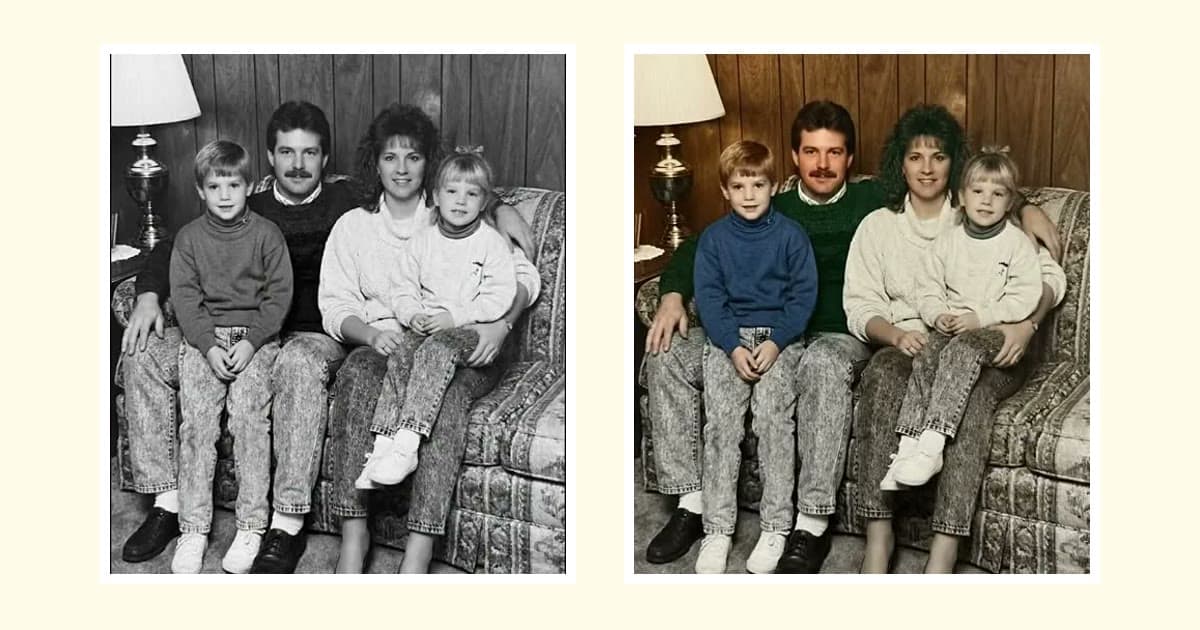
| Lightened skin | The face is paler than in the scan, or than relatives remember | Brightness gets mistaken for complexion, as our article on colorized photos explains |
| Moles and scars gone | A mark that everyone remembers has vanished | A small mark can look like a speck of dust |
| A new expression | A serious face now has a slight smile | There is too little detail around the mouth, so a likely shape gets drawn |
Try Photold on a photo of someone you knew well, then compare the faces feature by feature.Try Photold
How to reduce the risk
- Start from a better scan. More real information means less guessing. Go back to the print instead of a chat app copy, and follow the phone scanning checklist.
- Repair rather than enhance. Repairing fixes damage, while enhancing adds detail. If a face is undamaged and only a bit soft, think twice about sharpening it.
- Choose the gentlest option that solves the problem. In Photold, Remove Scratches does the same physical repair as Restore, without sharpening, and keeps the natural film grain and palette.
- Run each tool once, from the scan. Feeding a result back in adds guesses on top of guesses.
- Compare with other photos of the person. Look at a photo from around the same age, and check the ears, the hairline and any moles.
- Run it twice if your tool allows it. A detail that differs between two results is a guess. A detail that stays the same is not proof, but it is a better sign.
- Put the real face back. In an image editor, layer the result over the scan and bring the face back from the scan, keeping the repaired surroundings. A scratch on a cheek is easier to live with than a stranger's eyes.
What Photold does, and what it cannot promise
We make Photold, so read this with that in mind. It is designed with this problem in view.
- Restore does not crop, restage, or change faces, expressions or skin tone by design.
- Remove Scratches does the physical repair without sharpening.
- HD Enhance avoids over-sharpening and plastic skin, and must not change identity or complexion.
- Colorize treats skin tone as a fact, not a style. It infers complexion from features, hair and the tonal range rather than brightness, and does not lighten skin.
This reduces changes. It does not rule them out. AI results vary with the source photo, and fine detail hidden by damage is reconstructed, not recovered. So run the same checks on our results as on anyone else's. If you are comparing tools, see our roundup of the best photo restoration apps.
Who is the best judge of a restored face
Someone who knew the person. You may see a sharp, pleasant photo. Your aunt will see in a second that the smile is wrong. Show both versions side by side and ask an open question: "Does this look like her? What is off?" Asking whether it is lovely will only get you a polite answer.
If nobody who knew them is left, other photos are your best evidence. Keep the untouched scan either way, and take extra care with photos of someone you have lost, since that may be the image you keep coming back to. If a damaged face matters and no automatic result looks right, a professional retoucher can work from other photos of the person.
Frequently asked questions
Why did AI give my relative teeth or a different smile?
The mouth held too little detail, so the model drew a likely one. Try a gentler option or a better scan, then compare again.
Can I stop AI from changing a face at all?
No tool can promise that. You can lower the risk with a better scan, a gentler repair and a single pass, then check the result. You can also bring the face back from the scan in an image editor.
Does a higher-resolution scan help?
To a point. A clean scan of the print gives a model more real information than a small copy. For ordinary prints, the Library of Congress says 300 dpi is a good starting point, and higher settings mostly show defects.
Does Photold change faces?
It is designed not to. Restore is built not to change faces, expressions or skin tone, and HD Enhance must not change identity or complexion. That reduces changes but does not rule them out, so compare the result with the scan and ask someone who knew the person.