Photold
The Best Photo Restoration Apps in 2026, Compared
By the Photold team · · 7 min read
Photold is our own app, so we are not neutral here. What we say about other apps comes from their own public pages, checked on the date shown.
If you want one app that handles old family photos end to end on a phone, our answer is Photold, and we should be upfront that we make it. The other serious choices are Remini for sharpening faces, MyHeritage if you are already building a family tree, Picsart or Fotor if you want an all-round editor, and Photoshop if you want to control every detail by hand.
We did not run a laboratory test, and we would be suspicious of any list that claims a neutral one from a company selling an app. What we did instead is read each product's own official pages in November 2026 and compare what they say they do. Pricing changes often and differs by country, so we describe how each one charges and leave the amounts to its official page.
The comparison at a glance
| App | Repairs damage | Colorizes | Sharpens | Animates | How it charges |
|---|---|---|---|---|---|
| Photold | Yes | Yes | Yes | Yes | Free to download, AI tools with Pro; one free try on the website |
| Remini | Yes | Not listed | Yes | Not listed | Free with in-app purchases and subscriptions; contains ads |
| MyHeritage | Not listed | Yes | Yes | Yes | Account and paid plan for full use |
| Renew | Yes | Yes | Yes | Yes | Free trial, then subscription |
| Picsart | Yes | Yes | Yes | Yes | Free tier, paid plans |
| Fotor | Yes | Yes | Yes | Yes | Free starter credits, then credits or subscription |
| Google Photos | Not listed | Not listed | Yes | Yes | Free limits; a Google AI plan raises them |
| Photoshop | Yes | Yes | Yes | Not listed | Adobe subscription |
"Not listed" means we did not find the feature on the official pages we read, not that the product can never do it. Check the current page before you decide, since these products change quickly.
What actually matters when you choose
Feature lists look alike, so these four questions separate the options better.
- Do the faces stay the same people? This is the test that matters most for family photos. Try a photo of someone you know well before you commit. See does AI restoration change faces?
- Does it respect the original? Some tools add color or heavy smoothing by default. If you want a black-and-white photo repaired and left black and white, check that you can get that.
- What does it really cost for your use? A weekly subscription suits a one-weekend project far better than a year of forgotten renewals. Read how cancellation works before you pay.
- What happens to your photos? Look for a stated retention period and a clear position on training. Our guide to uploading family photos safely lists what to look for.
1. Photold: for repairing and reliving family photos
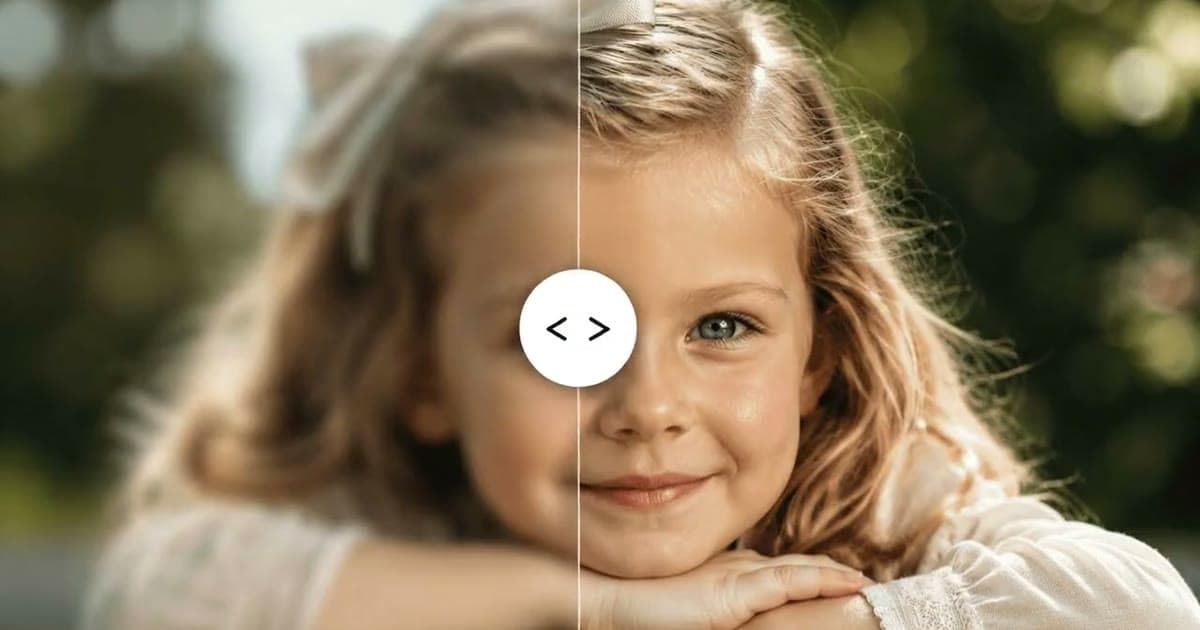
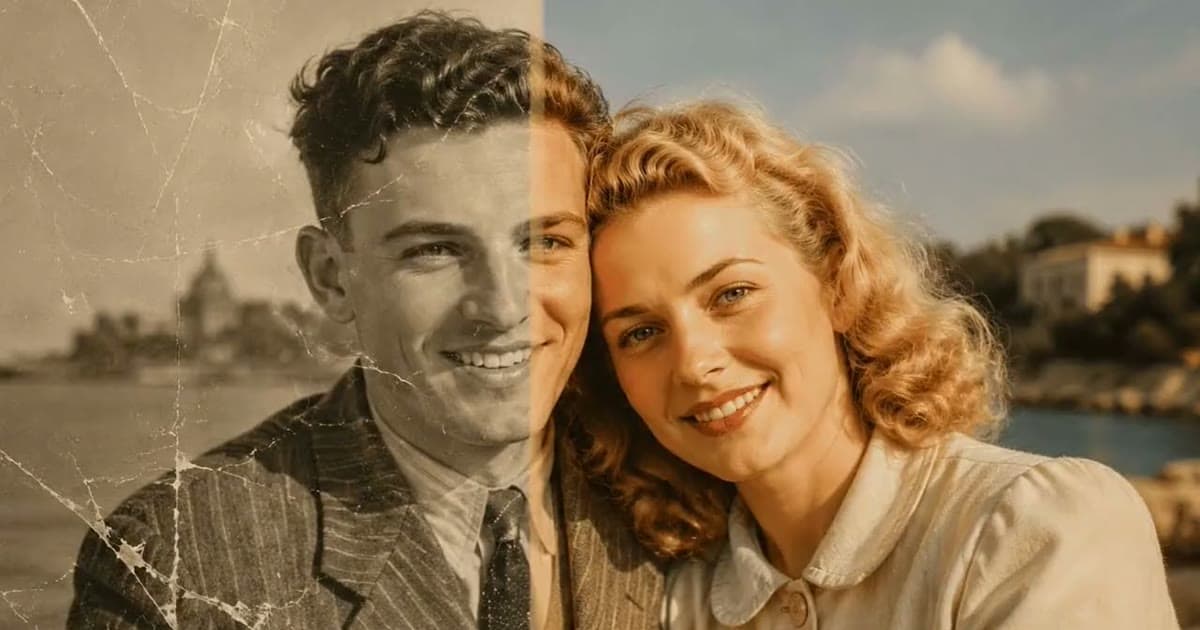
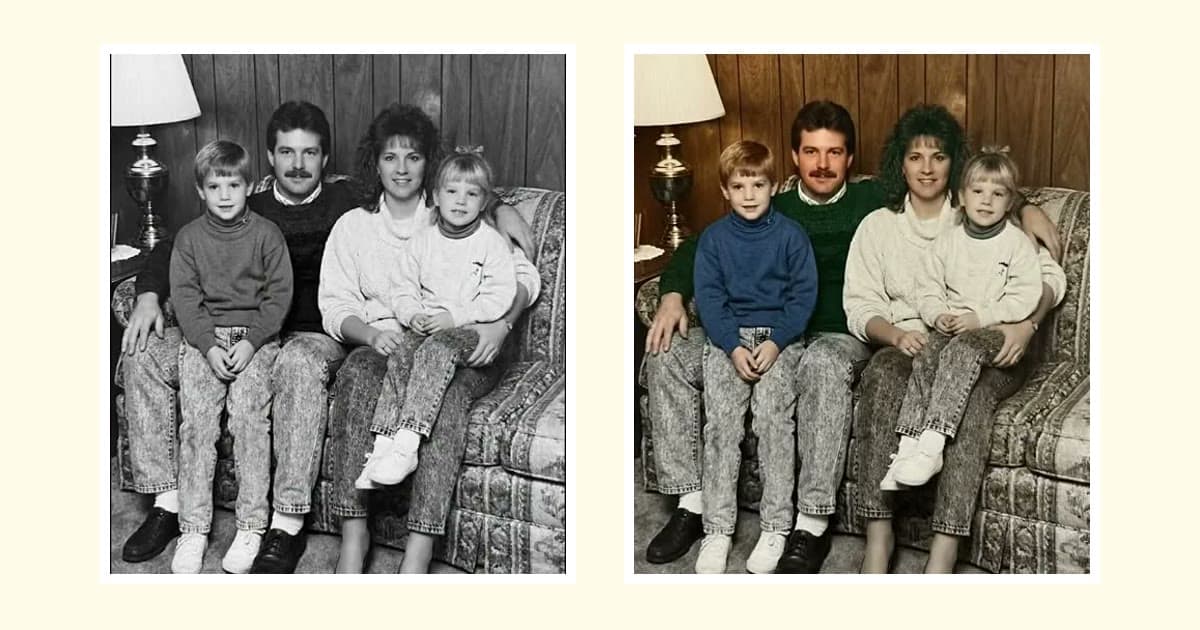
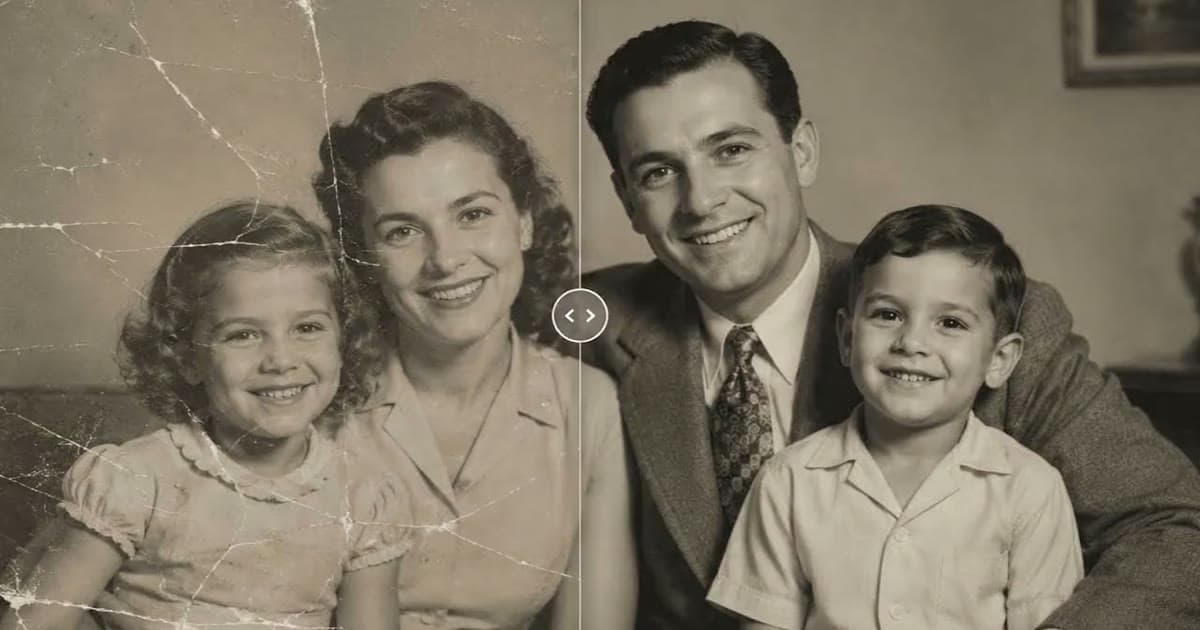
Photold is built around old photos. Restore repairs scratches, creases, tears, tape marks and stains while keeping the original palette, so black and white stays black and white unless you choose to colorize. Separate tools handle HD enhancement, colorizing and animation, and the mobile app can scan prints and film negatives with the camera. It also has creative tools such as Time Travel and Family Portrait.
Keep in mind: results depend on the source, and like every AI tool it reconstructs what damage has hidden. The AI tools need Photold Pro, though you can try one image feature once for free on the website without an account. Animate is not part of that free try.
Compare it yourself: try one of your own photos.Try Photold
2. Remini: for sharpening blurry faces
Remini, from Bending Spoons, describes itself as an AI photo enhancer and promises to turn old, blurry photos into clear HD in one tap. Its App Store listing also mentions repairing old, blurry and scratched photos. There is a web version too. The App Store lists free download with in-app purchases, with weekly, monthly and yearly subscription lengths, and notes that it contains advertising. Colorizing and portrait animation were not on the listing we read. We go further in our guide to Remini alternatives.
3. MyHeritage: if you are building a family tree
MyHeritage is a genealogy service with photo tools attached: Photo Enhancer, In Color for colorizing and Deep Nostalgia for animating faces. It makes the most sense if your photos and family tree already live there, because the tools sit alongside your research. It asks you to create an account, with full use tied to a paid plan. Plans and limits vary by region, so check its own site.
4. Renew: a focused restoration app
Renew is the closest to Photold in focus. Its site lists restoring torn, faded and damaged pictures, removing scratches, colorizing, HD enhancement and animation, with App Store and Google Play apps and a web service. Its pricing page describes a free trial and a subscription, and lists saving results without a watermark as a paid benefit. If you are choosing between focused apps, try the same photo in each and look closely at the faces.
5. Picsart: an all-round editor that also restores
Picsart is a broad creative editor for web, mobile and desktop. It offers automatic old photo restoration online, plus colorizing, deblurring and upscaling tools, and motion for scanned family photos. Its restoration page says the basic tool is free, and that free saves are at a lower resolution on its enhancer. It suits you if you also want a general editor, though old photos are only one of many things it does.
6. Fotor: web-based restoration with a stated deletion window
Fotor offers restoration, colorizing, unblurring, upscaling and face animation, on the web and in mobile and desktop apps. New users get free credits to try it, and its page describes credits and a Pro+ subscription after that. One detail worth noting: its page states that uploaded images are automatically deleted within 24 hours and are not used to train public models. That kind of clear statement is what to look for from any service.
7. Google Photos: what you may already have
Google Photos is already on many phones, and its help pages list suggested edits such as Enhance, and an Unblur tool, along with photo-to-video motion. Some tools are limited to Pixel phones or certain regions, and generation limits apply unless you buy a Google AI plan. We did not find scratch or tear repair, or colorizing, in the help pages we read. It is a good free first step for a slightly soft photo, and not a restoration tool as such.
8. Photoshop: for full manual control
Photoshop is the professional option. Adobe's Photo Restoration neural filter offers image enhancement, face enhancement and scratch reduction sliders, and is labeled a beta filter, while Colorize lets you refine colors with pins. Beyond that you have the traditional retouching tools. It needs a subscription and time to learn, and it repays both on a difficult photo. See AI, Photoshop or a professional for when that is worth it.
How to run your own test in ten minutes
- Pick three photos: one with a clear face and light damage, one with heavy damage, and one group shot with small faces.
- Scan them as well as you can, using these tips. Every tool does better with a better source.
- Run the same three through each app you are considering, using its free option where it has one.
- Show the results to a relative who knew the people. Their reaction is a better test than any feature list.
Frequently asked questions
What is the best free photo restoration app?
Several tools offer limited free use, including Picsart and Fotor, and Photold offers one free try on its website. Free options usually limit resolution, quantity or features. We cover the trade-offs in our guide to free photo restoration.
Which app is best for colorizing old photos?
Photold, MyHeritage, Renew, Picsart, Fotor and Photoshop all list colorizing. Since colors are an informed guess, judge by skin tones and by anything your family remembers. See how accurate colorized photos are.
Are these apps safe for family photos?
It depends on each service's policy. Look for how long uploads are kept, whether they train AI models and how to delete your data. Read the policy of any app before uploading photos of other people.
Why does this list put your own app first?
Because we make it and believe in it, and we would rather say that plainly than pretend to be neutral. Everything we say about the others comes from their own public pages, so you can check it through the links below.