Photold
AI Prompts to Combine Two Photos Without Changing Faces
By the Photold team · · 6 min read
Photold is our own app, so we are not neutral here. What we say about other apps comes from their own public pages, checked on the date shown.
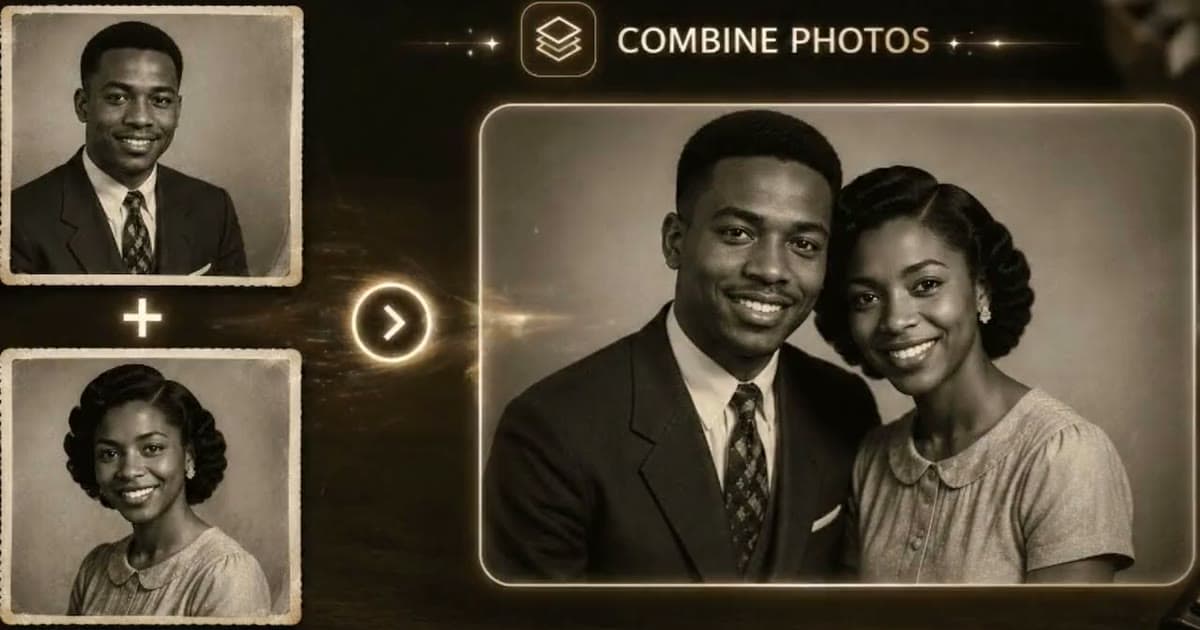
To combine two photos with an AI image assistant, upload both in the same message and tell it four things in plain words: which photo is which, what to keep from each one, how the people should stand, and that every face, age and skin tone must stay exactly as it is. The last part is the one most people leave out, and it is the main reason faces drift.
Below is a five-part template, copy-ready prompts for the most common jobs, and the fixes for the usual problems. Google's tips for its Gemini image model recommend simple, conversational instructions and say you can combine up to three images, so the prompts here are written that way. If you would rather not write prompts at all, the end of this guide explains what Photold does instead, and where it is more limited.
The template: five parts of a good combining prompt
| Part | What to write | Example |
|---|---|---|
| Who is who | Name each photo by its order | "The first photo is my grandmother. The second is me." |
| Keep | Faces, ages, expressions, hair, skin tones | "Keep both faces and ages exactly as they are." |
| Pose | One plain sentence about how they stand | "Standing side by side, her hand on my arm." |
| Place | Which background to use, or a short description | "Use the garden from the first photo." |
| Light and look | One light source and one photo style | "One soft light from the left, the colors of a 1980s print." |
Keep each part to one sentence. Long prompts with many adjectives give the tool more room to change things you did not ask about.
Copy-ready prompts for the most common jobs
Two people side by side
"The first photo shows my father, the second shows me. Create one photo of the two of us standing side by side, looking at the camera. Keep both faces, ages, expressions, hairstyles and skin tones exactly as in the photos. A plain living room background, one soft light from the window, nobody else in the picture."
Add a person to an existing photo
"Add the person from the second photo to the first photo, standing at the right end of the group. Do not change anything else in the first photo: same people, same background, same light. Keep the added person's face, age and skin tone exactly as in the second photo, and match their size to the people next to them."
Saying "do not change anything else" matters here. Without it, the tool may redraw the whole scene. If the person you are adding has passed away, our guide to adding a deceased loved one to a photo covers the choices and the family conversation that come with it.
Copy the pose from one photo to another
"Use the pose from the first photo: arms crossed, body turned slightly to the left. Apply it to the person in the second photo. Keep that person's face, hair, clothing and skin tone exactly as in the second photo, and keep the background of the second photo."
Three photos into one
"The first three photos each show one of my children at about the same age. Create one photo of all three sitting together on a sofa, oldest on the left. Keep every face, age and skin tone as in their own photo. Do not add anyone else."
For the popular picture of you with your child self, see the separate guide on hugging your younger self with AI, which includes the instant-camera look.
Would rather skip the prompts? Combine Photos in Photold puts two people in one picture with matching light.Try Photold
Why faces drift, and how to stop it
- The source face is too small. A face cropped from a group photo gives the tool little to hold on to. Use the largest, sharpest face you have, and scan prints flat instead of photographing them at an angle.
- The prompt asks for too much. A new pose, a new place, new clothes and a new style all at once means more redrawing. Change one thing per message.
- The light disagrees. Two faces lit from opposite sides look pasted together, and the tool may "fix" that by changing a face. Pick photos lit from the same side, or ask for one light.
- You asked it to match the two people. Phrases like "make them look like a family" invite the tool to make faces more alike. Ask to keep them as they are instead.
- The old photo still has damage. Scratches and stains end up in the new picture. Repair them first; our restoration prompts can help.
If a face changes, do not run the same prompt again and again. Reply with one correction, such as "Keep the face of the man exactly as in the second photo," or switch to a sharper source photo.
A prompt or an app: which one to use
| You want | Better choice | Why |
|---|---|---|
| A specific pose, such as a hug | A prompt | You can describe the pose in words |
| Someone added to a photo with its background kept | A prompt | You can ask it to keep the rest of the photo |
| Two people together, quickly, with matching light | Photold Combine Photos | No prompt to write; it matches light, perspective, shadows and film look |
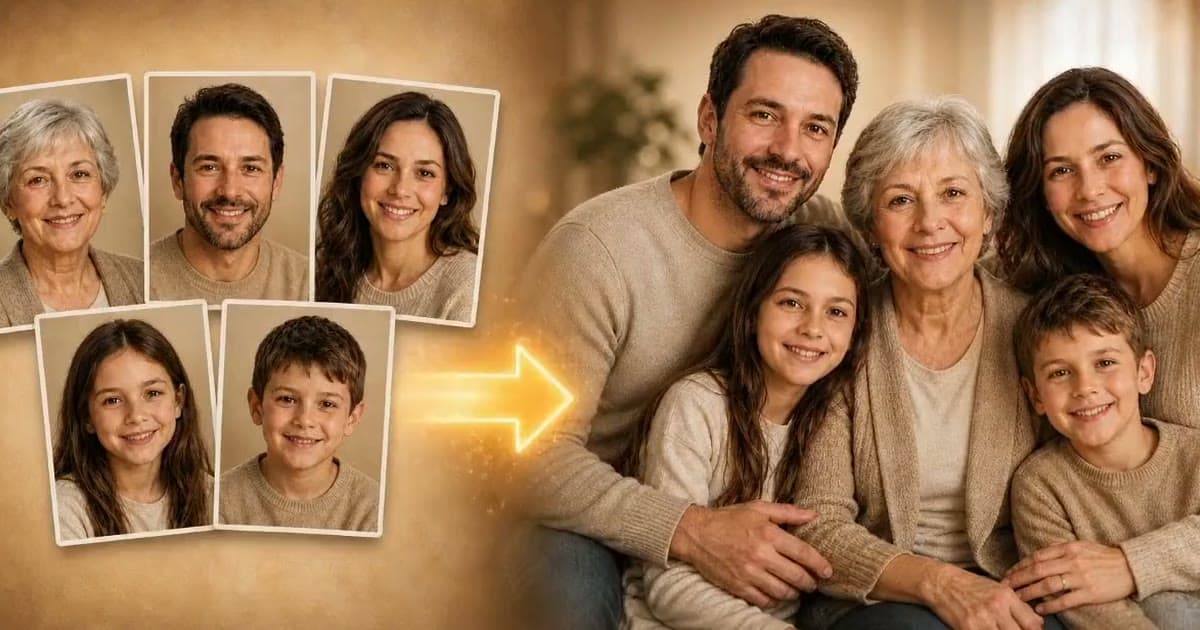
| Two to five people in one family portrait | Photold Family Portrait | The result shows exactly that many people, nobody added or duplicated |
Photold's Combine Photos is told to keep each person's face, age and skin tone. The trade-off: you cannot type a pose, so the people stand close, side by side or lightly interacting, and the background is new. Our guide to combining two photos into one explains how to choose a pair that blends well.
Check and label the result
- Compare each face with its source photo, one person at a time: eyes, nose, mouth, ears, hairline.
- Check that nobody looks older, younger, paler or darker than in their own photo.
- Count hands, arms and people. Extra fingers and extra people are common mistakes.
- Save it with a name that says it was made with AI, such as "made with AI, 2026", so nobody in the family mistakes it for a real moment years from now.
And ask first. A combined picture puts people together who may not have chosen to be, so check with everyone in it, or with their close family, before you share it.
Frequently asked questions
How do I combine two photos into one with AI?
Upload both photos in the same message, say which photo is which, describe the pose and the background in one sentence each, and ask the tool to keep every face, age and skin tone exactly as they are.
How do I add a person to a photo without changing the background?
Ask the tool to add the person from the second photo to the first one and to change nothing else: same people, background and light. Also ask it to match the new person's size to the people around them.
Can AI copy a pose from one photo to another?
An image assistant can try when you describe the pose in words and ask it to keep the second person's face and clothing. In Photold's Combine Photos you cannot type a pose.
Why does AI change the faces when I combine photos?
It redraws the people to fit one scene, and it changes more when the faces are small, the light disagrees or the prompt asks for many changes at once. Use sharp photos, one light and one change per message.