Photold
Adding a Loved One Who Has Passed Away to a Photo
By the Photold team · · 5 min read
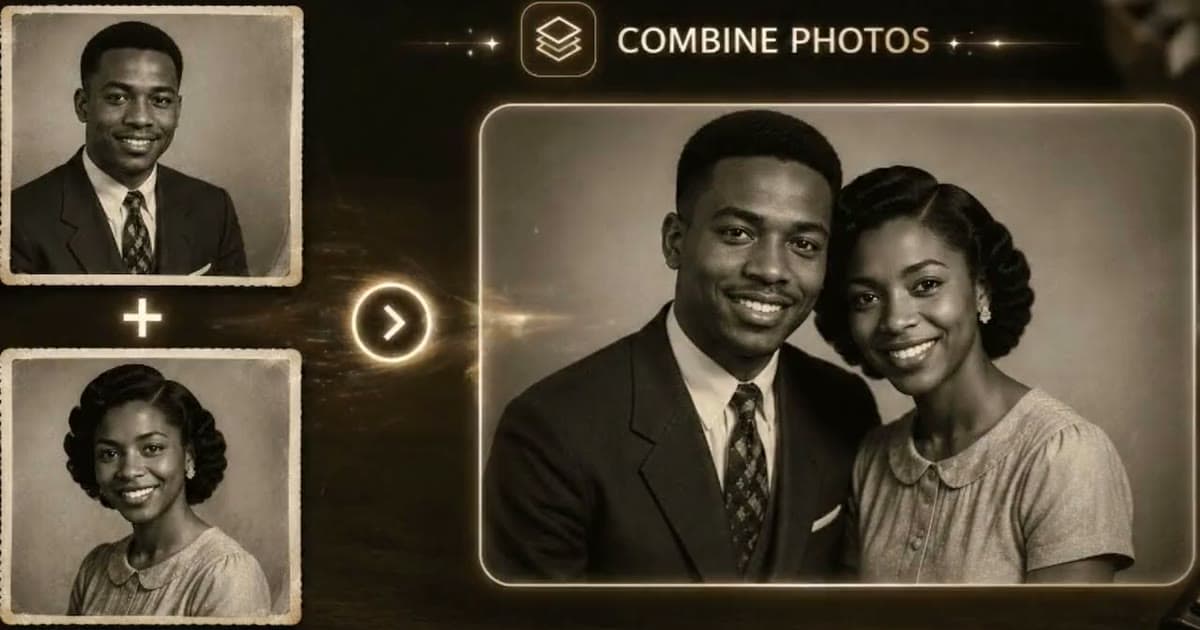
You can add a loved one who has passed away to a photo by combining pictures with AI: a clear photo of them and a photo of you, or of the people they should be with. The tool puts everyone into one new image under the same light. It works best when you start with their sharpest photo, repair it first, and talk to close family before anyone else sees the result.
People make these pictures for a wedding a parent did not live to see, a grandparent beside a baby they never met, a sibling at a graduation. The steps below are practical. Photold has two tools for this, and we say plainly what each one can and cannot do.
Choose the tool for the picture you have in mind
| You want | Use | What to expect |
|---|---|---|
| You and them, side by side | Combine Photos (two photos) | Both of you in one image, close together, under one light |
| Several family members together | Family Portrait (2 to 5 photos, one per person) | A group portrait in a warm, neutral room, with exactly as many people as photos |
| Them added into one specific photo, such as the wedding party | A photo editor, or a professional retoucher | Keeps that exact scene, but takes skill or a fee |
| Only their photo, repaired for a frame | Restore | Damage repaired, face and colors kept |
The third row matters. Combine Photos and Family Portrait make a new picture, so the background is new as well and may not be either of the originals. If you need the real venue and every guest behind them, that is careful editing work; our comparison of AI, Photoshop and professional restoration explains the options.
Pick their photo: the clearest face, at the age you want
- The face comes first. Choose the photo where their face is largest, sharpest and turned toward the camera, even if it is not the most beautiful picture overall.
- Choose the age on purpose. Both tools are told to keep each person's face and age as photographed. They will not make anyone older or younger, so the age in the photo you choose is the age they will appear.
- Look at the light. A photo lit from the same side as yours blends more naturally.
- A face from a group photo works if it is sharp. Crop it, but not so tightly that the hair and shoulders are cut off.
- Repair before you combine. Scratches and fading carry into the new image. Our guide to restoring a photo of a loved one who passed away covers choosing and repairing that photo.
Step by step
- Gather the photos. If theirs is a print, scan it flat with your phone and keep the untouched scan.
- Repair their photo with Restore, or with Remove Scratches if you want to keep the film grain.
- Open Combine Photos for two people, or Family Portrait for up to five, and add one photo per person.
- Compare each face with its own source photo, covering the others with your hand.
- If a face does not look right, try a different photo of that person rather than running the same set again.
- Show the result privately to one close family member before you print or share it.
Have the photos ready? See what Combine Photos makes of them in Photold.Try Photold
For a bigger group, our guide to making a family portrait from separate photos explains how Family Portrait arranges children and adults. As with any AI picture, results vary with the source photos, and a face hidden by damage is reconstructed, not recovered. A person who knew them well is the best judge of whether it looks like them.
Talk to family before you share it
A picture like this can comfort one person and upset another, sometimes in the same family. A few simple habits help:
- Ask the person closest to them first, such as a surviving partner, parent or child.
- Show it privately before it goes on a wall, into a slide show or onto social media.
- Do not surprise someone with it at a funeral or a memorial service.
- If someone finds it hard to look at, keep it for yourself. The original photos are still there.
- Use photos of living people only with their permission.
Label it so nobody mistakes it for a real moment
Years from now, a convincing picture of your mother at your wedding will look like a photo from the day. Someone building a family tree could take it as fact. A label takes a minute:
- Name the file plainly, with "AI combined" and the names in it. The Library of Congress recommends descriptive file names for personal archives.
- Keep the source photos in the same folder, so anyone can see what it was made from.
- Write on the back of a print, for example: "Made with AI from two photos. Dad died in [year], before this day."
- At an event, a small card beside the frame, such as "In loving memory", tells guests what they are looking at without explaining.
For printing sizes, see our guide to enhancing old photos for printing. For framed prints, albums and other keepsakes, we have more gift ideas with restored photos.
Frequently asked questions
How can I add a deceased loved one to a photo for free?
On the Photold website you can try one image feature, such as Combine Photos, once for free without an account. A free photo editor can also do it by hand, but matching the light takes time and skill.
Can AI put someone who has died into my wedding photo?
AI tools such as Combine Photos make a new picture with a new background rather than inserting a person into your exact wedding photo. To keep the real scene, use a photo editor or a professional retoucher.
Will my loved one look like themselves?
Results vary with the source photo. A sharp, front-facing photo gives the best chance, and someone who knew them well is the best judge of the likeness.
Is it all right to add someone who has passed away to a photo?
It is a personal choice. Talk to close family first, share it privately before anywhere public, and label it clearly as an AI-made image.