Photold
How to Enhance Photo Quality With AI
By the Photold team · · 5 min read
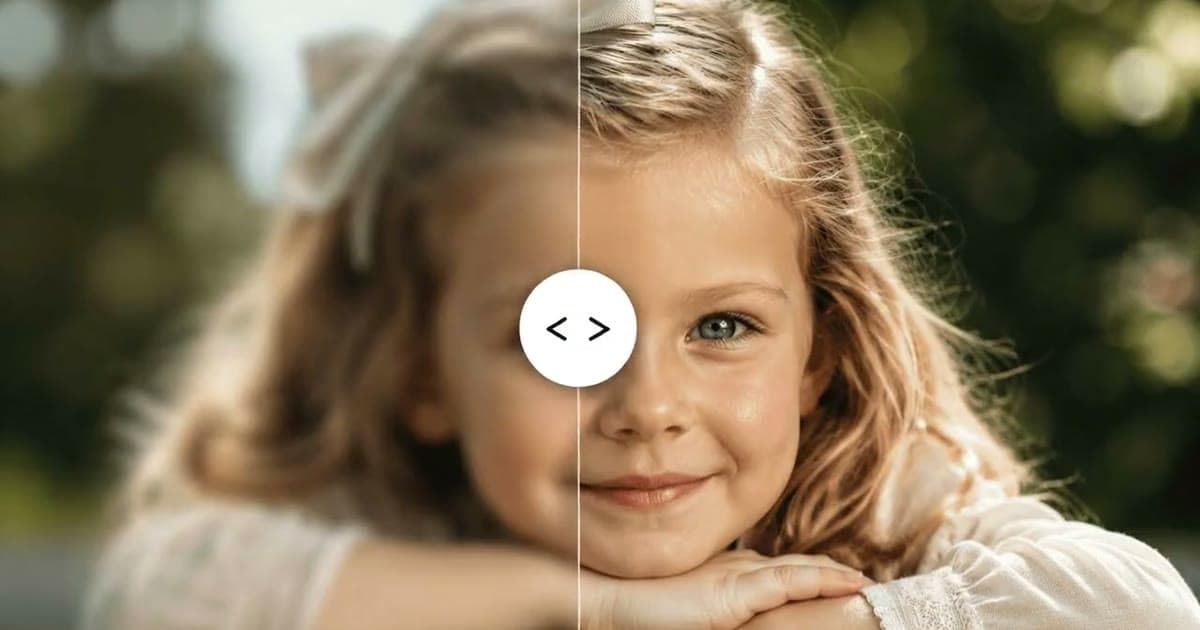
To enhance a photo's quality with AI, start from the best copy of the photo you can find, give it to an enhancer that sharpens detail and reduces noise, and then compare every face with the original. The first step matters more than people expect: no tool can bring back what a heavily compressed copy has already thrown away.
AI enhancement works well on photos that are a bit soft, grainy or small. It does not turn a tiny, smeared face into a sharp portrait without guessing. Below: how to find the best source, which tool fits which problem, what "4K" and "HD" really mean, and the checks that keep a face looking like the person. Photold has a tool for this called HD Enhance.
Start from the best copy you have
Every time a photo is shared, resized or screenshotted, it can lose detail. An enhancer works with what is left, so a few minutes spent finding a better copy usually pays off more than any setting.
- Ask for the original file. A photo forwarded through a chat app or a social network is often a smaller, compressed copy. The person who took it may still have the full-size one.
- Avoid screenshots. A screenshot of a photo is limited to your screen's size and adds another round of compression.
- For a print, rescan it. A flat, sharp scan beats a quick phone snap of a print under a lamp. Our guide to scanning old photos with your phone shows how.
- Keep the untouched file. Enhance a copy, so you can always start again.
Match the tool to the problem
"Low quality" can mean several different things, and each one has a better fix.
| What you see | Likely cause | What helps |
|---|---|---|
| Soft, slightly out of focus | Focus missed, or a small file | HD Enhance |
| Grainy, speckled shadows | Low light, high camera sensitivity | HD Enhance (gentle noise reduction) |
| Blocky patches, smeared edges | Heavy compression | Find a better copy first, then HD Enhance |
| Scratches, dust, creases | Physical damage to a print | Restore or Remove Scratches |
| Faded, washed-out colors | An aging print | Restore |
| Streaks of motion blur | The camera or person moved | Only partly fixable; see below |
For an old print with both damage and softness, repair first and enhance last. Our guide to fixing blurry old photos covers old prints in more detail.
What "4K" and "HD" really mean
Many people search for a way to make a photo 4K or HD. Two different things hide behind those words:
- More pixels. Upscaling makes the image larger. On its own, that only makes a soft photo bigger and still soft.
- More visible detail. An AI enhancer sharpens edges, reduces noise and improves local contrast. Where detail is missing, it draws a plausible version. That detail is reconstructed, not recovered.
This matters most for faces. A face that is only a few pixels wide gives the AI almost nothing to hold on to, so the result is closer to a guess about the person than a sharper photo of them. If you want a print, check how many pixels your print size needs in our guide to enhancing old photos for printing. The Library of Congress suggests 300 dpi as a good starting point for scanning prints.
Have a soft or grainy photo? Try HD Enhance in Photold and compare it with the original.Try Photold
Step by step
- Find the largest, least compressed copy of the photo.
- Crop away what you do not need only after enhancing, so the tool sees the whole image.
- Repair any physical damage first with Restore or Remove Scratches.
- Run HD Enhance on a copy.
- Compare the result with the original at the same size, face by face.
- If a face looks wrong, go back to a better source rather than enhancing the result again.
Check the face before you keep it
Photold's HD Enhance is told to avoid over-sharpening and plastic-looking skin, and not to change anyone's identity or complexion. Every AI result still varies with the source, so look for yourself:
- Eyes and teeth. Over-enhanced faces get glassy eyes and teeth that are too even.
- Skin. It should keep its texture, not look waxy, and it should not be lighter or darker than in the original.
- Hair and edges. Watch for halos and hair that turns into a smooth helmet.
- Text and small objects. Enhancers can turn blurry letters into confident nonsense. Do not trust an enhanced license plate or sign.
Our explainer on whether AI changes faces lists more signs. A person who knows the subject is the best judge.
When enhancement is not enough
Strong motion blur, a face the size of a fingernail in a big group photo, or a file that has been compressed again and again are where any enhancer starts guessing. In those cases, look harder for a better copy, accept a smaller print, or ask a professional retoucher. On the Photold website you can try HD Enhance once for free without an account, which is a quick way to see what your photo allows.
Frequently asked questions
How can I enhance photo quality for free?
Start from the original file, not a forwarded copy. On the Photold website you can try one image feature, HD Enhance included, once for free without an account.
Can AI make a photo 4K?
It can make a photo larger and sharper, but where detail is missing it draws a plausible version rather than recovering the real one. Small faces are where this shows most.
Will enhancing change the face?
It can, especially with very small or blurry faces. Compare each face with the original and keep the untouched file.
Can AI fix motion blur?
Only partly. Light blur often improves, but strong streaks from a moving camera or person cannot be fully undone.