A good tennis video does not need expensive equipment. It needs a phone that stays still and a view that shows your feet, your racket and the ball at the same time. Most unusable clips fail on one of those three things.
This guide covers where to put the camera for each stroke, which settings are worth changing, and how to record a practice session so you can actually learn from it, whether you review it yourself, send it to a coach or upload it to an AI analysis app like TennisAI.
What you need
- A phone with enough free storage. Video at 60 frames per second fills it faster than you might expect, so clear some space first.
- A way to hold it still: a small tripod, or a fence clip, which attaches to the chain-link fence around most courts.
- A full battery. Recording uses a lot of power, and the screen can usually be dimmed while it runs.
You do not need an external lens, a sensor or a gimbal. Stability matters far more than image quality here, because a shaky view makes it hard to see where the racket meets the ball.
The best camera angles, stroke by stroke
Different views show different problems. No single angle shows everything, so choose the one that fits what you want to check.
| View | Where the phone goes | What it shows best |
|---|---|---|
| Side-on | Level with where you hit the ball, a few metres beyond the sideline | Contact point, swing path, weight transfer, the serve motion |
| Behind the baseline | Centered behind you, as high on the fence as you can reach | Court position, footwork, shot depth, whole points |
| Corner | Behind the baseline, near the corner of the court | A good all-round view of the stroke and the shot together |
| Front-on | Across the net, facing you | Racket preparation and early shoulder turn |
Forehand and backhand
Film from the side you are facing when you hit, roughly level with your contact point. That single view shows whether you are making contact out in front of your body and whether the swing rises through the ball. Put the phone at about hip to chest height so the view is not looking up at you.
Serve
Use two clips if you can. A side-on view shows your toss, your knee bend and the moment of contact. A view from behind the baseline shows where the toss drifts and which way your body moves into the court. Leave extra space above your head in the frame, since the toss and the racket are the first things to get cut off. Our serve guide explains what to look for once you have the footage.
Matches and rallies
For matches, film from behind the baseline and as high as you can, for example with a mount at the top of the fence. A higher view makes depth and movement easier to judge. Check that both baselines and the alleys stay inside the frame. If you only have one camera, this is the view that makes reviewing a whole match possible.
Phone settings worth changing
- Resolution and frame rate: 1080p at 60 frames per second is a good default. It keeps files manageable and gives you enough frames to slow the swing down. On an iPhone, go to Settings, then Camera, then Record Video, or tap the values at the top of the Camera screen in Video mode.
- Auto FPS: an iPhone can drop to 24 frames per second in low light, which blurs fast swings. If you film indoors or at dusk, check this option in the same Record Video menu.
- Slow motion: useful for studying one clip of a serve or a forehand. iPhones record slow motion at up to 240 frames per second, and faster rates make larger files, so keep it to short clips.
- Orientation: film horizontally. A tennis court is wide, and a vertical frame cuts off your movement and the ball.
- Focus and exposure: on most phones you can press and hold on the screen to lock them, so the camera does not keep refocusing when someone walks past.
- Lens: avoid digital zoom. Move the phone closer instead.
How to frame the shot
- Hit a few balls with a friend watching the screen, or check a test clip before you start.
- Make sure your feet are visible at the bottom of the frame and that there is room above your racket at full extension.
- Leave space in the direction you move. If you are filming side-on, you will drift during a rally.
- Keep the ball in view for at least a moment before and after contact. Shots are hard to judge if the ball leaves the frame right away.
- Lock the phone in place and leave it alone. Touching it mid-session is what causes most tilted or shaky footage.
What to record in a session
Long, unfocused video is hard to review. It is more useful to film a short block for one purpose than an entire session with no plan.
- One stroke at a time: a few minutes of forehands or serves gives you plenty of repetitions to compare.
- The same view each time: using the same angle every session makes changes much easier to see.
- A clip under pressure: film some points too. Technique in a calm drill often looks different from technique in a match.
Common filming mistakes
| Mistake | What goes wrong | Fix |
|---|---|---|
| Phone too close | Your feet or racket leave the frame | Move it back until your full swing fits |
| Filming through a dark fence | The camera focuses on the fence, not on you | Put the lens against a gap in the mesh |
| Shooting into the sun | You become a silhouette | Move the camera so the sun is behind it |
| Handheld filming | Shaky video hides the contact point | Use a tripod or fence clip |
| Changing angle every session | You cannot compare sessions | Mark the spot and use it again |
Getting the most from AI video analysis
Automated analysis depends on what the camera can see. In TennisAI, results can vary with video quality, camera angle and lighting, so the same habits that help a human reviewer also help the AI. If a stroke does not appear in your clip, the app shows it as not in the video instead of scoring it, so include the shots you actually want feedback on.
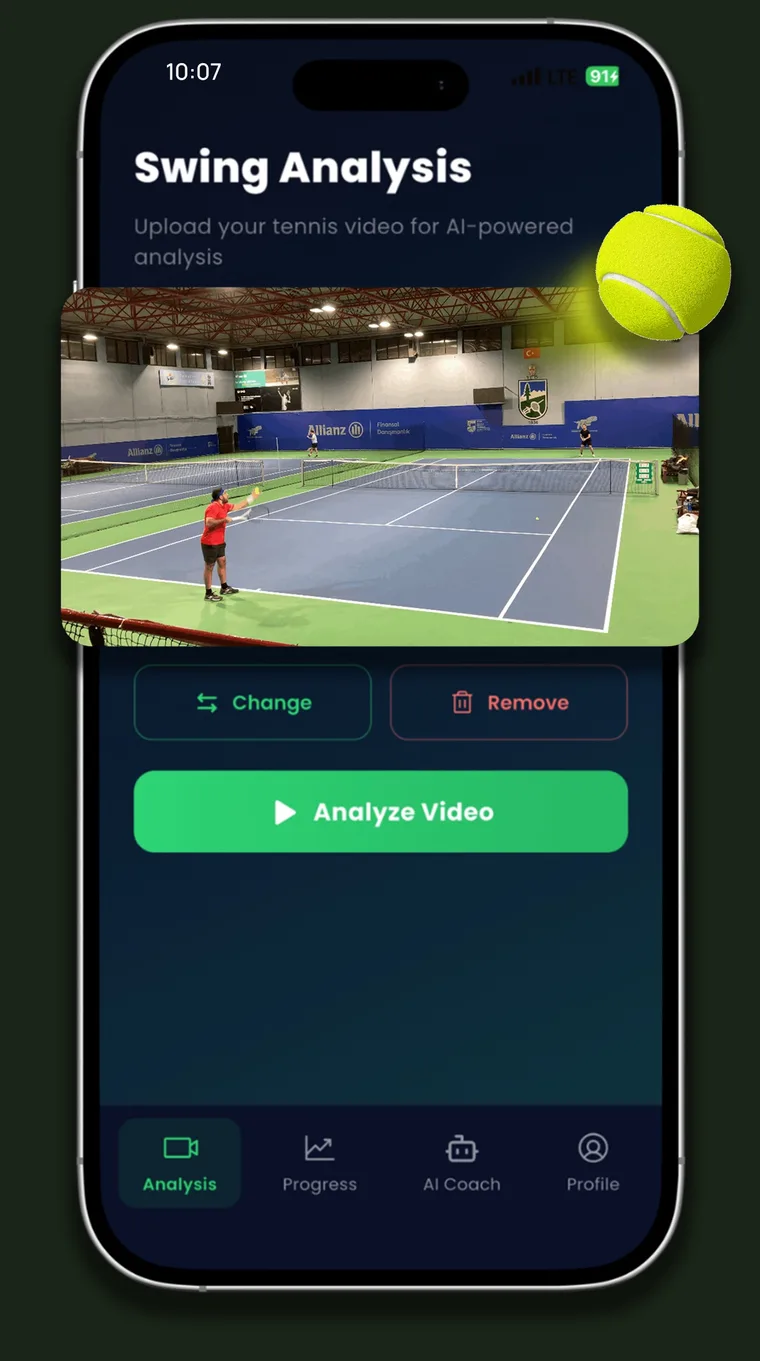
Your scores also become more useful once you compare them over time. Upload clips from a similar angle each week, and your progress history will show changes in your game, not just changes in your camera position. If you want to know what the technology can and cannot judge from a video, read what AI swing analysis can tell you.
Frequently asked questions
What is the best angle to film tennis?
Side-on is usually the most useful view for technique, because it shows your contact point and swing path. A high view from behind the baseline suits matches, because it shows court position and shot depth.
What frame rate should I use for tennis video?
A setting of 1080p at 60 frames per second works well for most sessions. Slow motion is useful for short clips of a single stroke, such as a serve, but it creates larger files.
How do I film myself playing tennis without a tripod?
A fence clip is the easiest option, since most courts have a chain-link fence. You can also lean the phone securely on your bag, but check that it cannot tip over and that the angle is not looking up at you.
Should I film horizontally or vertically?
Horizontally. A wide frame keeps your movement and the ball in view during a rally, while a vertical frame cuts them off.
See this in your own game
Upload a practice or match video to TennisAI and get feedback on your forehand, backhand and serve.

Sources
This article is general information about tennis training and does not replace a coach or medical advice. Stop and see a professional if something hurts. TennisAI is made by Pace, the publisher of this blog.
