Photold
How to Restore Old Photos on iPhone
By the Photold team · · 6 min read
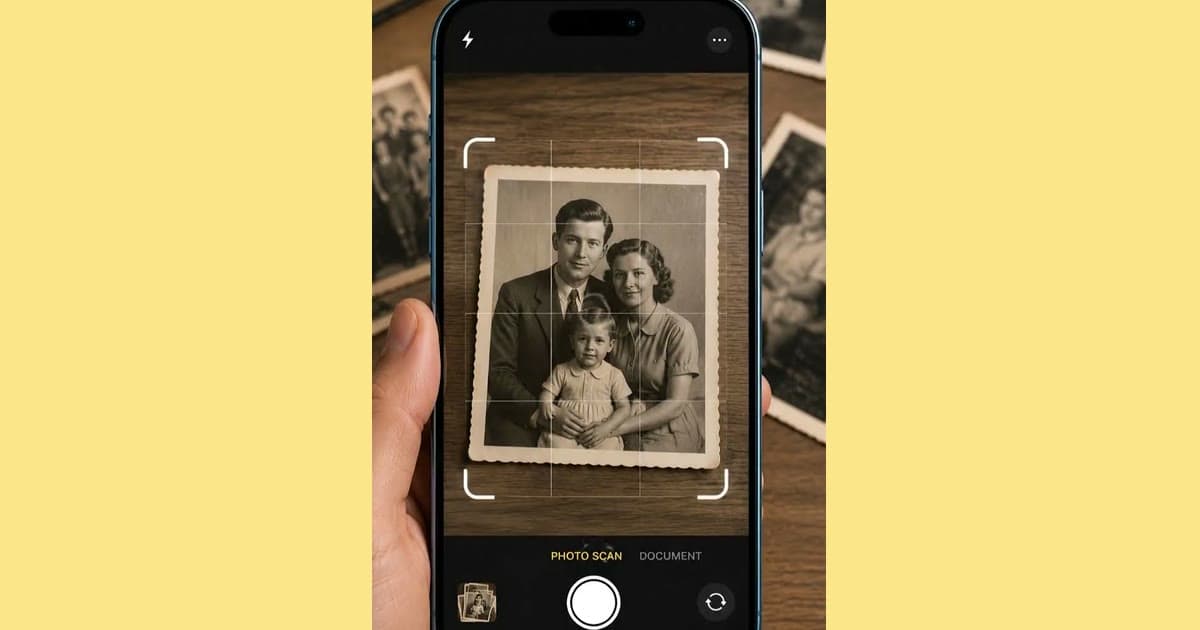
To restore an old photo on iPhone, you do two separate jobs. First you capture the print, with the Camera, with PhotoScan or with a scanning flow inside an app. Then you repair that capture with a tool built for damage, because the iPhone's own camera and gallery can capture and crop a photo but cannot fix scratches, tears or stains.
The print stays untouched the whole way, so a poor attempt costs you nothing. Below you will find what each tool does, how to get a clean capture, the steps in Photold, our photo restoration app, and how to save and share the result without losing quality.
What your iPhone can and cannot do on its own
| Tool | What it does | What it does not do |
|---|---|---|
| iPhone camera and gallery | Captures the print and crops it | Repair scratches, tears, creases or stains |
| PhotoScan by Google Photos | Free. Glare-free scans from a step-by-step capture flow, with automatic cropping | Repair damage: its App Store listing describes scanning |
| Photold Scan Photo | A camera flow for prints, inside the mobile app | Work on the web: it is in the iPhone and Android apps only |
| Photold Restore | Repairs scratches, dust, creases, tears, tape marks and stains, and recovers faded detail | Crop, restage or change faces, expressions or skin tone, by design |
A capture tool on its own gives you a clean copy of a damaged photo. That is still worth having, because every later step starts from that file, and you can return to it if a repair goes wrong.
Capture the print with the Camera or PhotoScan
Either one works. The Camera is already on your phone. PhotoScan is a free download built for this one job, and its step-by-step flow is aimed at glare, the usual problem with glossy prints. Its App Store listing shows a last update in November 2022, so try it on one photo before you plan a whole album around it.
- Find soft light. A window with no direct sun is ideal. Leave the flash off, since it puts a bright patch on glossy paper.
- Lay the print flat on a plain, dark surface. Handle it by the edges, with clean hands.
- Hold the phone parallel to the print. A tilted phone turns the rectangle into a wedge and leaves one edge soft.
- Move closer rather than zooming. Let the print nearly fill the screen, with a small margin to crop later.
- Watch for your own shadow and for the phone's reflection in the paper. Shifting a little to one side usually clears both.
- Take a few shots and keep the sharpest. Zoom in on a face to decide.
Our guide to scanning old photos with your phone goes deeper on the setup.
With a clean capture on your iPhone, see what Restore does with the damage.Try Photold
Restore the photo in Photold, step by step
You can capture inside the app, or start from a shot you already took.
- Open Photold. It is free to download, and the AI tools, Restore included, are part of Photold Pro.
- Start from the print or from a file. Use Scan Photo to capture the print with the app's camera flow, or pick your Camera or PhotoScan shot from your gallery.
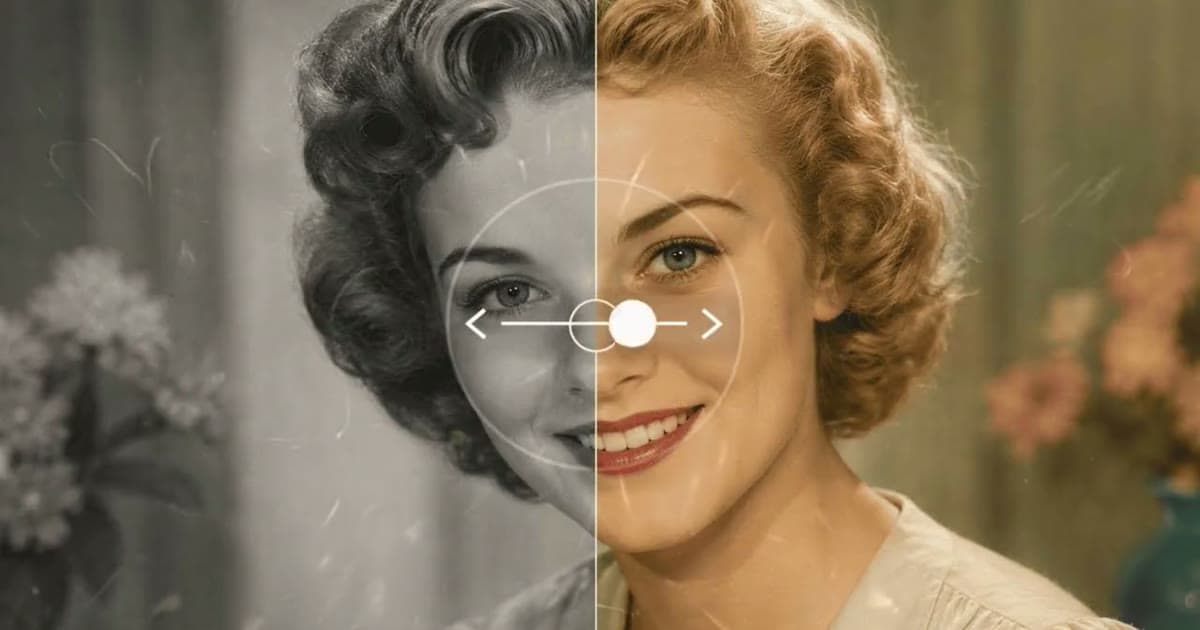
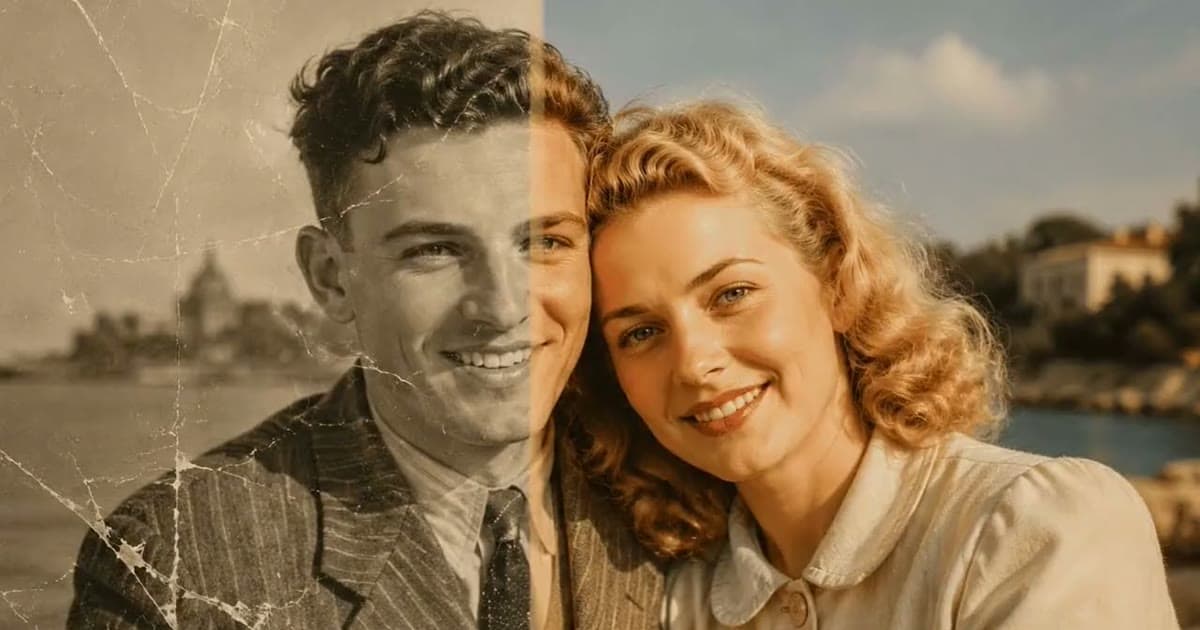
- Choose Restore. It repairs scratches, dust, hairs, creases, fold lines, tears, tape marks and water or chemical stains, adds gentle sharpening and noise reduction, and recovers faded detail in shadows and highlights. A black-and-white photo stays black and white, and sepia stays sepia.
- Compare the result with your capture, as described in the next section.
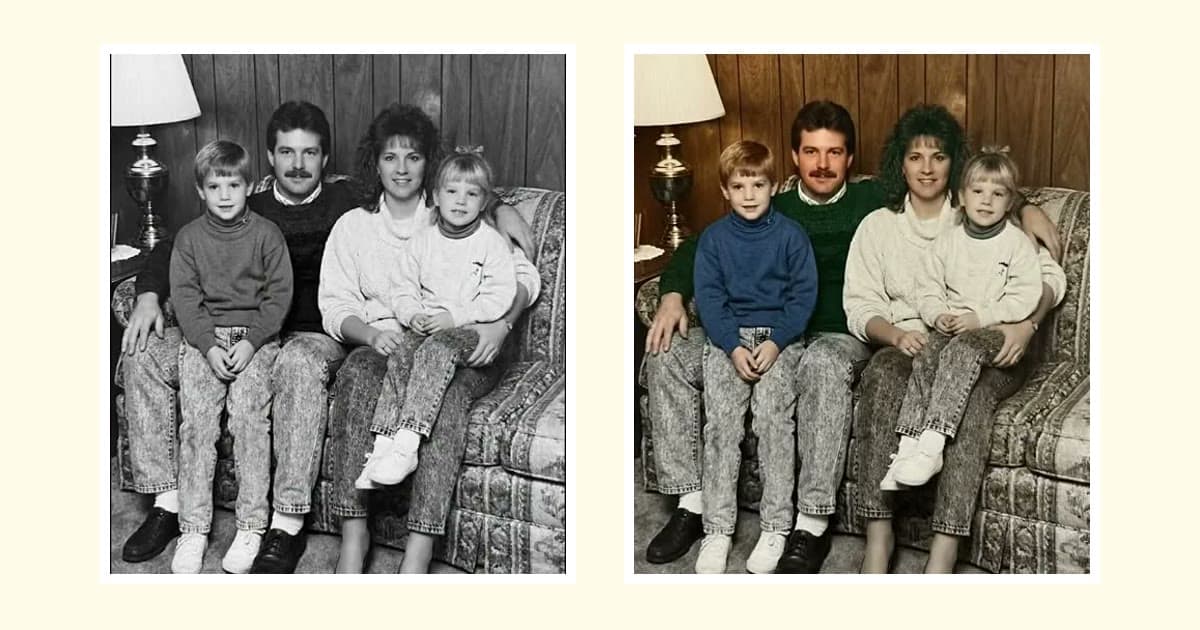
- Add color only if you want it. Colorize is a separate step with its own guide: how to colorize black-and-white photos. Its colors are plausible, not a historical record, so keep the uncolored version too.
- Save or share the result, and keep the capture you started from.
No app yet? On the Photold website you can try one image feature once for free without an account (every image feature except Animate), using a capture you already have. Scan Photo is only in the mobile app. Photos uploaded for the free try are kept up to 30 days.
Check the result on more than your phone screen
AI results vary with the source photo, and fine detail hidden by damage is reconstructed, not recovered. A phone screen also flatters: at that size, almost any repair looks clean. So zoom in on the same spot in both versions, then look at them on a larger screen if you can.
- Eyes, mouth and teeth: do they match your capture?
- Moles, scars and glasses: are they all still there?
- Edges: the framing should be the same as your capture.
Then show both versions to someone who knew the person. They are the best judge of a likeness. If something looks off, read why AI restoration can change faces before you accept the result.
Save and share without losing quality
- Keep both files. Hold on to the untouched capture as well as the repair, with descriptive file names. The Library of Congress suggests at least two copies, on separate media, as physically far apart as practical.
- Know where the file lives. Photos saved to the Photold library are stored on the device and in our cloud storage, linked to your account, and location metadata is removed. Is it safe to upload family photos? covers the rest.
- Send the full-size file for printing. Chat apps often compress pictures, and a compressed copy can look fine on a phone and poor on paper. Check what size you need for printing first.
- Ask before you upload other people. Upload photos of other people only with their permission.
Helping a relative with a different phone? The Android version of this guide starts by testing the camera, since Android cameras vary so much.
Frequently asked questions
Can the iPhone Photos app remove scratches from an old photo?
Treat the iPhone's own camera and gallery as tools for capturing and cropping. They do not repair scratches, tears or stains, so you need a separate repair app or an image editor for that.
Is PhotoScan enough to restore an old photo?
PhotoScan handles the capture: its App Store listing describes glare-free scans and automatic cropping. That gives you a clean copy with the damage still in it, so repair is a separate step.
Do I need a scanner to restore old photos on iPhone?
No. An iPhone capture in soft light is fine for many family photos. A flatbed scanner gives a more faithful copy, so consider one for very small prints or big enlargements.
Can I restore an old photo on iPhone for free?
Photold is free to download, but its AI tools are part of Photold Pro. On the Photold website you can try one image feature once for free, without an account.