Photold
How to Restore Old Photos on Android
By the Photold team · · 6 min read
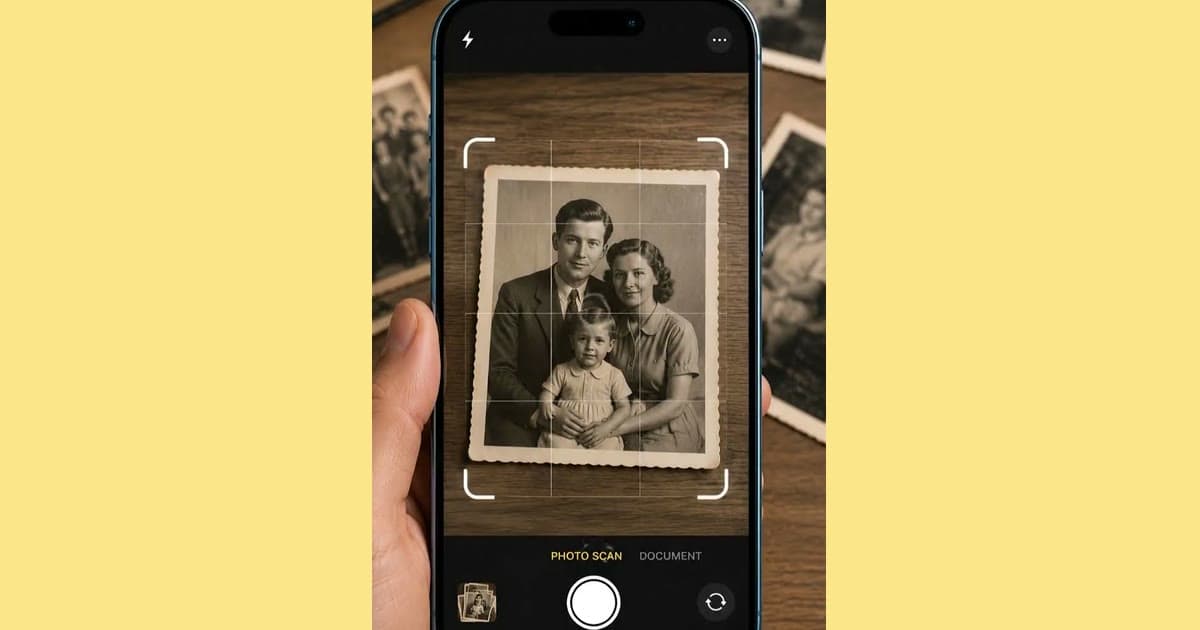
To restore an old photo on Android, capture the print with your phone, then repair that capture with a tool built for damage, such as Photold. Your phone's own camera and gallery can capture and crop. Scratches, tears and stains need a separate repair step.
The part that needs care on Android is the camera. Phones range from small budget models to flagships with several lenses, and each one processes pictures in its own way. Settings copied from a guide written for another phone will not tell you much, so test your own first. All it takes is one print and a few shots.
Test your camera on one print before the whole album
Pick a print with a face and some fine pattern, such as a striped shirt or a lace collar. Those two things show softness and heavy processing quickly.
- Lay the print flat near a window with no direct sun. Turn the flash off and hold the phone parallel to the print.
- Take one shot with the main camera, moving in until the print nearly fills the frame.
- If your phone has another lens or a 2x option, take a second shot with it from further back.
- If your camera offers a beauty, portrait or scene effect, take one shot with it and one without.
- Open the shots on the largest screen you have and zoom in to the same spot on the face.
- Crop the best one to the edges of the print and read its pixel size. For a 10 × 15 cm / 4 × 6 in print, about 1200 × 1800 px matches a 300 dpi scan, the starting point the Library of Congress recommends.
| What you see when you zoom in | Likely cause | What to try |
|---|---|---|
| Soft all over, even the print's edges | Too close for the lens to focus | Move back a little and crop later |
| Straight edges of the print look curved | A wide lens used up close | Switch lens, or step back and use the 2x option |
| Speckled noise in the dark areas | Too little light | Move nearer the window, or wait for a brighter hour |
| Waxy skin and crunchy outlines | The camera's own processing | Turn off any effect and give it more light |
| A pale patch over part of the photo | Glare | Move the print so the window is off to one side |
Once you have a method that shows real texture in the print, use it for the whole batch. Our guide to scanning old photos with your phone goes deeper on the setup.
What Google Photos can and cannot do for an old photo
Google Photos Help lists Enhance and Unblur tools, and some of them are only on Pixel phones. We found no tool for repairing scratches or tears in old photos in its help pages. Help pages change, so check the current version for your phone.
That may be all you need for a dull or slightly soft capture with no physical damage, if your phone has those tools. For a scratch, a crease or a tear, plan on a separate repair step.
Once your test shot looks clean, see what Restore does with the damage.Try Photold
Repair the capture in Photold, step by step
Photold runs on Android and iPhone. It is free to download, and the AI tools are part of Photold Pro.
- Bring in the photo. Pick the winning shot from your test out of your gallery, or capture the print with Scan Photo, the app's camera flow for prints.
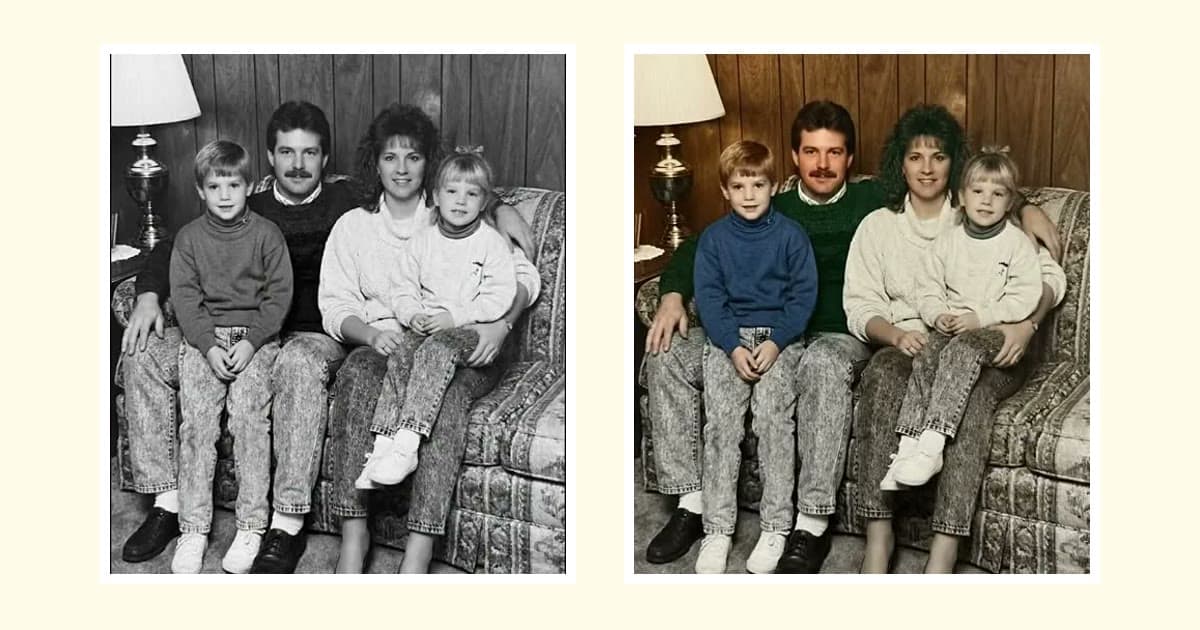
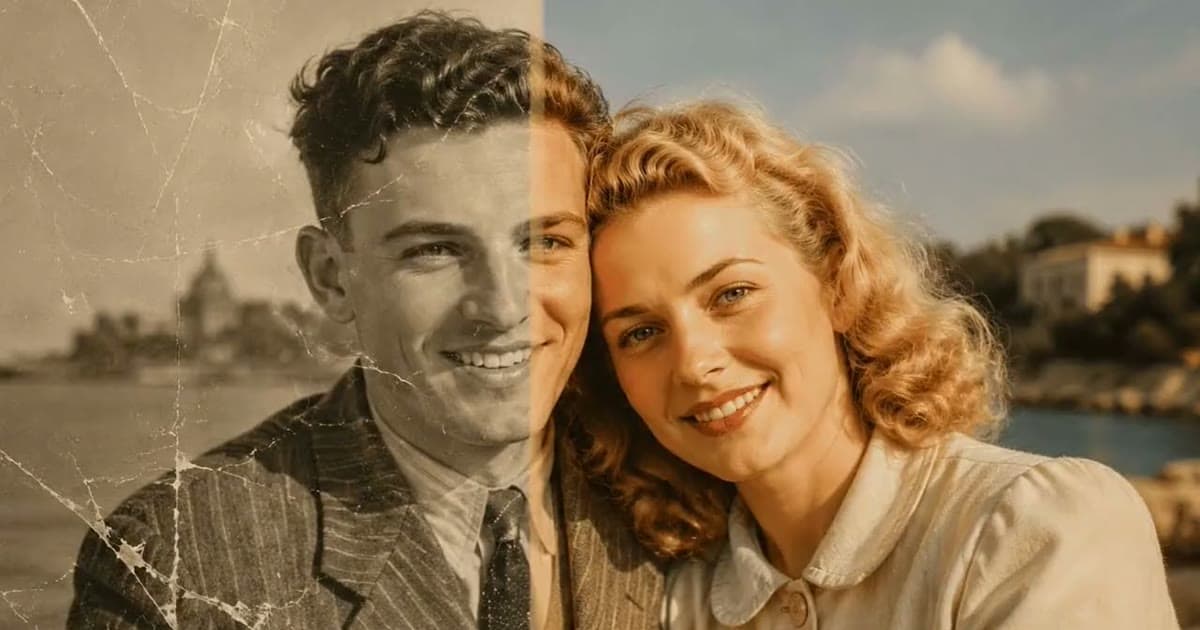
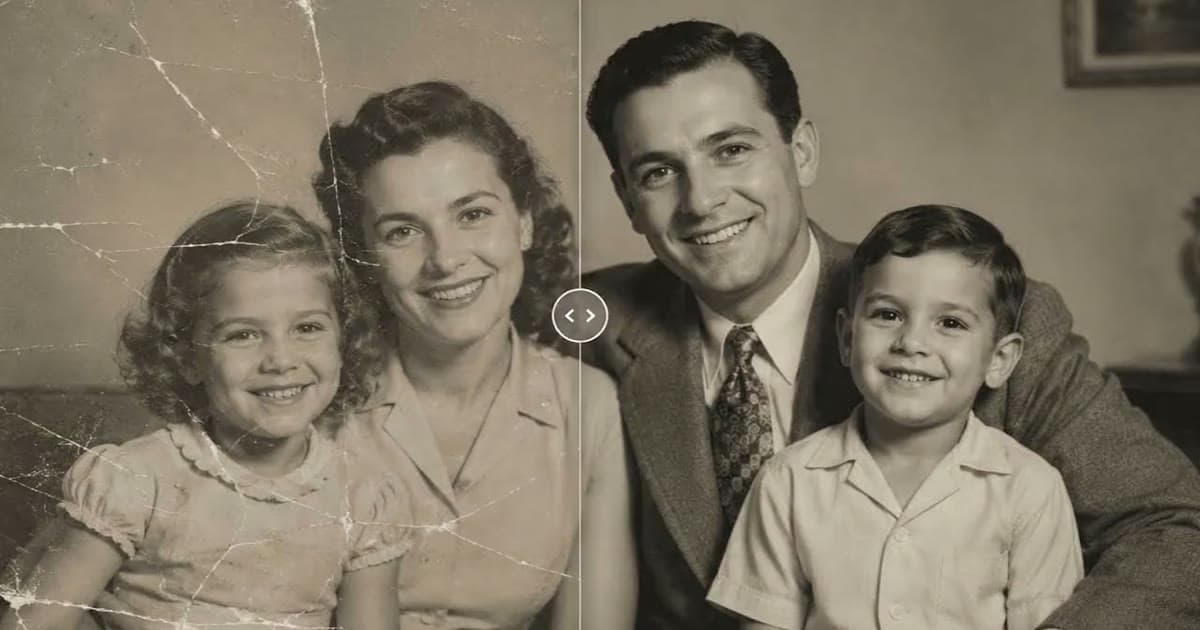
- Choose the repair. Restore fixes physical damage, adds gentle sharpening and noise reduction, and recovers faded detail. If the photo is already clear and you like its grain, Remove Scratches does the same physical repair without sharpening.
- Compare the result with your capture at the same zoom. Look at eyes, mouth, teeth, moles and the edges of the frame. Detail hidden by damage is reconstructed, not recovered, so results vary with the source.
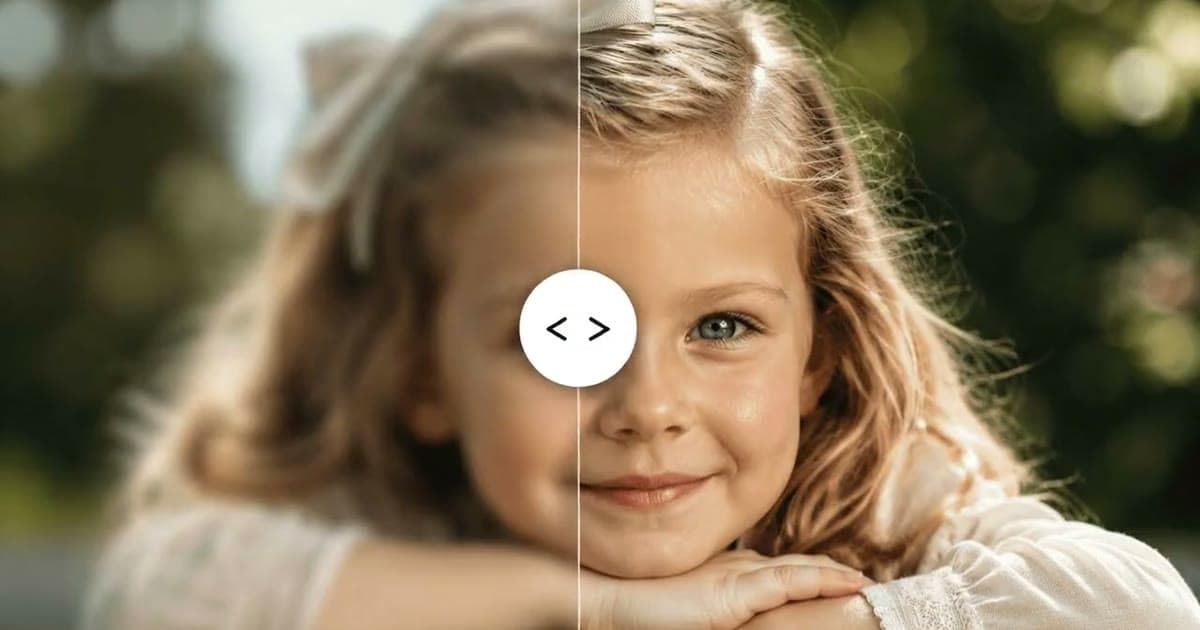
- Run HD Enhance last if it is still soft. It gives sharper detail, gentle denoising and better local contrast. Our guide to fixing blurry old photos explains what it can and cannot add.
- Save or share the result, and keep the untouched capture next to it.
When your phone is not up to it
If every test shot looks smeared or soft, the camera is the limit, and no repair tool fully makes up for that. AI can only guess at what the capture did not record. You still have options, and the repair can happen on your own phone either way.
- Borrow a better phone for an afternoon. Capture the prints with it and move the full-size files across, rather than sending them through a chat app that may compress them.
- Use a flatbed scanner, at a print shop or a friend's house. Start at 300 dpi.
- Save the better device for the photos that matter. You can capture the rest later.
If the better phone in the family is an iPhone, the iPhone version of this guide covers its capture options.
Keep the files safe, off the phone
A phone is one device, and it can break or get lost. The Library of Congress suggests at least two copies, on separate media, as physically far apart as practical. Check them at least once a year, and make new copies every five years or when necessary.
Keep the untouched capture as well as the repair, and give both descriptive file names, since tools improve and you may want another try. Put the print itself back somewhere cool and dry when you are done.
Frequently asked questions
Can Google Photos fix scratches on old photos?
Google Photos Help lists Enhance and Unblur tools, some only on Pixel phones. We found no scratch or tear repair for old photos in its help pages, so plan on a separate repair tool for physical damage.
Which Android camera setting is best for copying old photos?
It varies by phone, so test it. Take a few shots of one print with your lenses and effects, compare them zoomed in, and keep the one that shows the most real texture.
Is a budget Android phone good enough to copy old photos?
Often, for small prints in good light. If your test shows soft faces at every distance, borrow a better phone or use a flatbed scanner for the capture, then repair the file on your own phone.
Does Photold work on Android?
Yes. Photold is free to download on Android and iPhone, and the AI tools are part of Photold Pro. Scan Photo is a camera flow in the mobile app, not on the web.