Photold
How to Animate Old Photos and Make Them Move
By the Photold team · · 5 min read
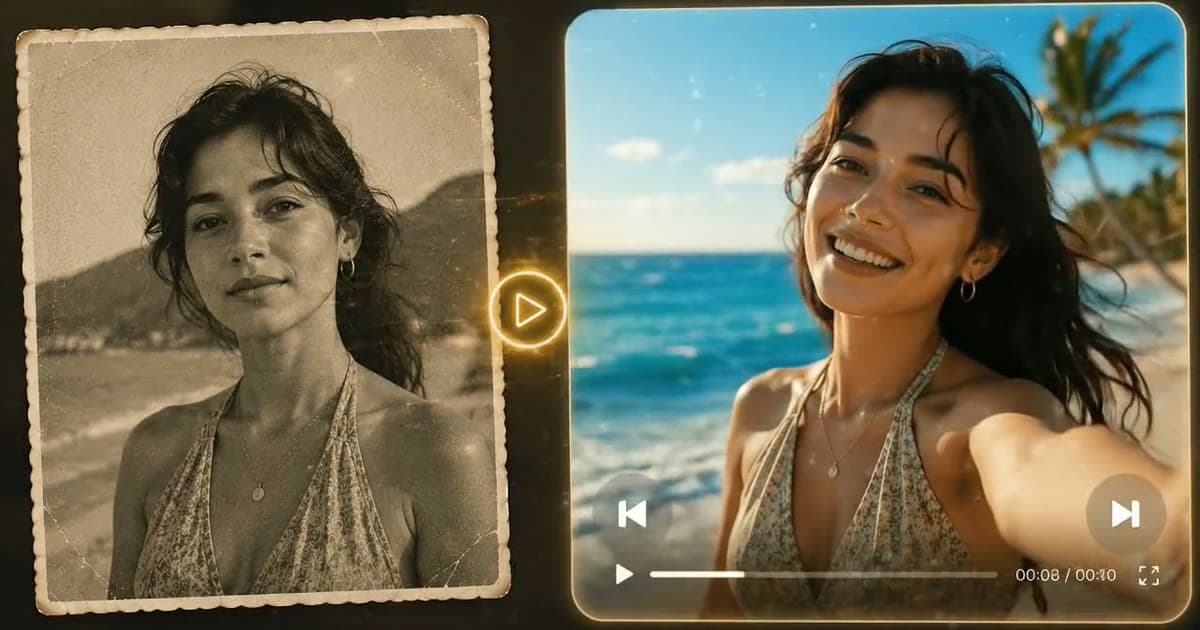
To animate an old photo, start with a clear, front-facing portrait, repair any damage, and give it to a tool that turns a still image into a short video. In Photold, you choose a gentle movement, a smile, a wave or a nod. The app adds light movement in the hair and clothing and a very slow push-in.
Be clear about what you get: an AI-made clip, not a recording. That person never made that movement for any camera. Animate is part of Photold Pro, and the free try on the Photold website covers every image feature except this one.
Choose a portrait the motion can work with
The photo you pick matters more than any setting, because motion needs a face it can read.
- Face toward the camera, with nothing across it. A front-facing portrait shows both eyes and the whole mouth. A strong profile, a hand or a deep hat shadow hides what the motion needs.
- Face large in the frame. A head-and-shoulders portrait is a better start than a wide shot, where a tiny face has little detail to move.
- A calm starting expression. A neutral face has room to warm up. A laugh caught halfway can look odd once it starts to move.
- One main person. If you care about one face in a group, crop to that person first and keep the full photo as well.
Repair the photo before you animate it
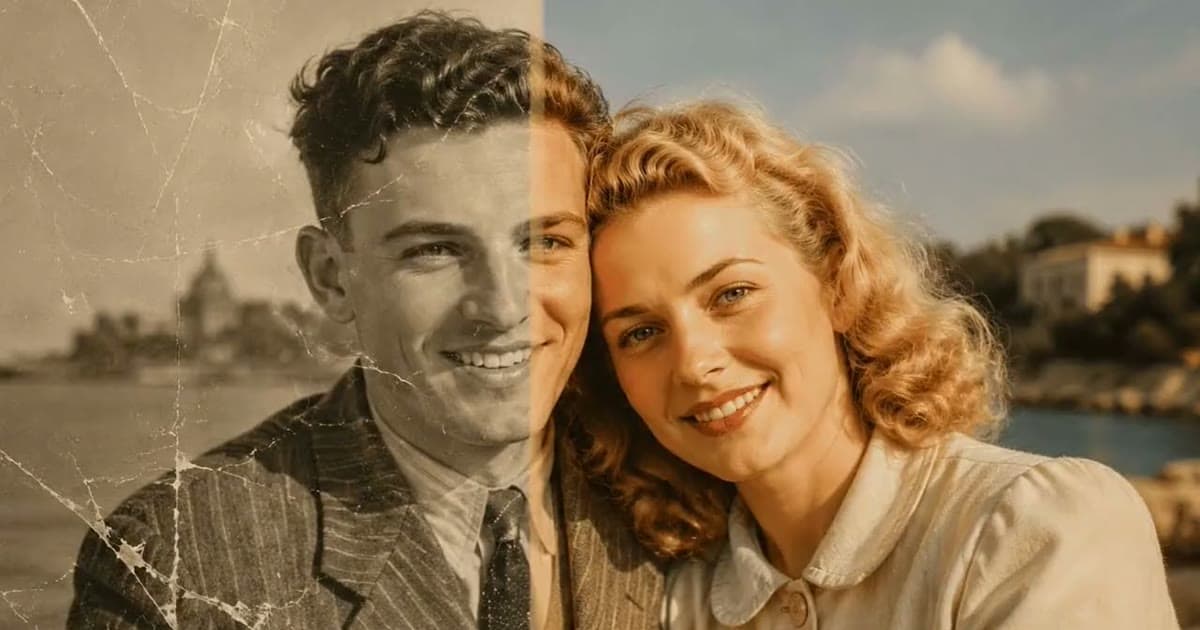
Do the repair first and the animation last. A scratch on a still photo reads as age. The same scratch on a moving face can read as a mistake, because it may stay put while the skin moves under it.
- Make a good copy of the print. Our guide to scanning old photos with your phone covers the setup.
- Follow the steps for restoring an old photo so scratches, creases and stains are gone.
- Check the face against the scan, since the video will carry any change. Here is how AI can change a face.
- Colorize only if you want to, as a separate version, then animate the version you like best.
Pick the motion that suits the person
There are four options. Think about the person, not only about which effect looks best.
| Motion | What to expect | When to choose it |
|---|---|---|
| Gentle movement | Small, soft motion with no big gesture | A serious portrait, or your first try with any photo |
| A smile | The expression warms into a smile | Someone known for smiling, in a portrait with a calm face |
| A wave | A hand lifts in greeting | A photo where a hand is already visible |
| A nod | A small dip of the head | A formal portrait where a smile would feel out of character |
A great-grandfather who never smiled for a camera can look like a stranger with a big grin. If you are unsure, start with gentle movement. Each version is a guess at how this person might have moved, and someone who knew them is the best judge.
Have a clear portrait ready? See how it looks with a gentle movement.Try Photold
What the short video can and cannot do
The clip is short and the motion is small. Hair and clothing stir a little, and the very slow push-in drifts toward the person as if a camera were moving closer. That drift does a lot of the work: it gives a still picture the feeling of a moment passing.
It cannot:
- Recover how someone moved. The tilt of their head and the way they laughed are not in the photo. The motion is imagined.
- Give you their voice. A photo holds no trace of it.
- Fix a poor source. A soft or tiny face stays soft or tiny, and movement can make faults easier to notice.
- Promise a steady likeness. Watch the eyes and mouth throughout. If the face begins to look like someone else, try another motion or a cleaner photo.
Why it can feel moving, and why some people find it strange
Seeing a grandmother you only knew from one stiff portrait begin to smile can hit hard. You have looked at that face for years, and for a few seconds it feels as if she looks back. For some families that is a lovely moment.
Others find it uneasy, and they have a point. Software made up that movement, and someone who grieved that relative may feel it makes her do something she never did. Neither reaction is a mistake, so take some care before you share.
- Ask close relatives before you post a clip of someone they mourn, and do not spring it on them at a gathering.
- If the person in the photo is alive, ask them first.
- Say plainly that it is an AI animation made from a still photo.
- Keep the photo itself as the record, and show the still next to the video.
Ideas for using the result
- Open a family slideshow with one clip, then cut to the real photos.
- Send a private clip to the relative who knew the person best, and ask what feels right and what does not.
- If moving pictures feel too close, try placing a relative in another era with time travel photos.
If the person has died, our guide to restoring photos of loved ones has more on handling these pictures with care.
Frequently asked questions
Can you animate any old photo?
You can try, but a clear, front-facing portrait gives the best chance of a good result. Repair visible damage first, because motion can make it easier to notice.
Is animating old photos free in Photold?
Photold is free to download, and Animate is part of Photold Pro. It is not included in the free try on the Photold website. The official page has the current plans.
Is an animated photo a real video of the person?
No. It is an AI-made clip based on one still image, and the movement is imagined. Keep the photo itself as your record.